
Clipboard Manager for Developers on Mac: Commands, Snippets and JSON
Quick answer: Developers copy commands, error messages, URLs, hashes and JSON all day. A good clipboard manager on Mac lets you search history, paste as plain text, format JSON, queue several values and avoid storing secrets. Check how it treats passwords and tokens, and keep a few favourites for repeated commands.
- Author
- KainoLab Team
- Published
- Oct 31, 2026
- Product
- Historr
Photo: Arnold Francisca on Unsplash. The cover is a stock photograph, not a Historr screenshot.
Publisher disclosure: Historr is made by KainoLab, the publisher of this guide. Product details were checked against official pages on 31 October 2026. This is not an independent test.
Developers move small pieces of text constantly: a command, a stack trace, a URL, an environment variable name, a JSON payload. The standard clipboard holds one item, so a single extra copy can wipe out what you needed. A clipboard manager reduces that friction.
This guide covers workflows where a manager helps and the privacy habits developers need. See our general best clipboard manager for Mac guide for a broader comparison.
Where does a clipboard manager help developers?
| Task | How a manager helps |
|---|---|
| Debugging | Keep an error message while you copy a file path or search term |
| Terminal commands | Recover a command you copied minutes ago |
| API work | Paste a URL, header and payload in order |
| Data cleanup | Paste plain text or formatted JSON |
| Code review | Keep several links and comments at hand |
How do plain text and JSON paste help?
Code copied from web pages or chat apps can carry formatting that breaks a terminal or editor. Pasting as plain text avoids that. Historr’s Paste as menu offers Plain Text, Trimmed, lowercase, UPPERCASE, slug-case and Pretty JSON, according to its documentation. Pretty JSON is useful when an API returns a compact payload you want to read.
Always check the result of a transform before using it. A transform changes the pasted text, not the original copy.
How does a paste queue help?
Suppose you need to enter a repository name, a branch name and a ticket number in three places. Add the three items to a queue, switch to the target and paste them in order. Historr’s Paste Stack documentation describes adding items from the context menu and pasting the next item with Option-Command-V.
Queues are useful for repetitive setup tasks, such as filling a configuration form.
What about secrets and tokens?
This is the most important developer concern. API keys, tokens and passwords often pass through the clipboard. Reduce risk by:
- Using a password manager that marks copied secrets so clipboard managers ignore them.
- Pausing recording before copying secrets manually. Historr has Pause Recording in its menu bar.
- Enabling auto-expiry for detected tokens and codes. Historr documents removing token-like values after a short time, though detection is not perfect.
- Clearing history after sensitive work.
- Not pasting secrets into chat or tickets.
Read our guide on private clipboard managers for more.
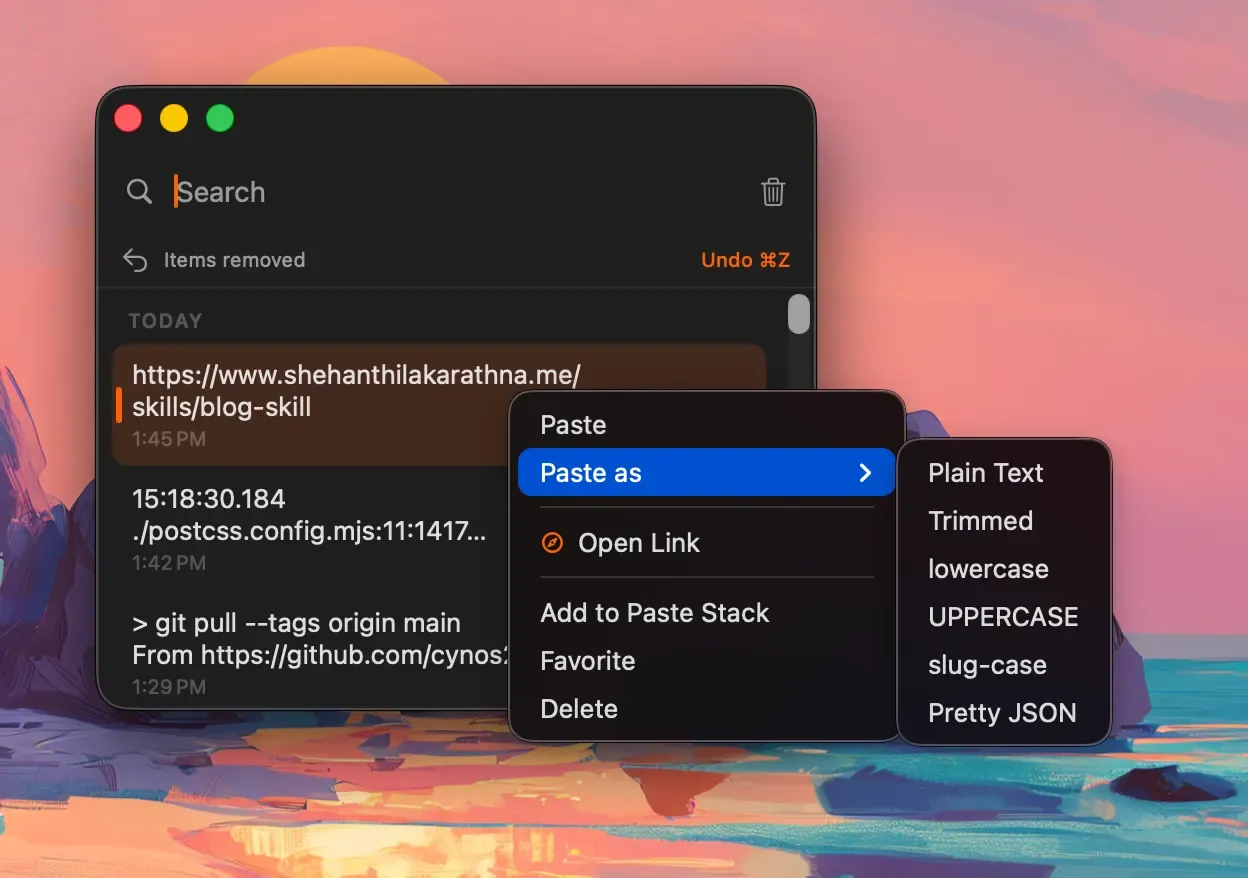
Real Historr screenshot supplied on 8 October 2026 (version 0.1.6). It illustrates the interface only.
Which features matter most for developers?
- Keyboard-only use. Open, search and paste without the mouse.
- A searchable history. You will remember part of a command, not the whole.
- Plain text paste. Avoid hidden formatting.
- Quick Look or preview. Check long text before pasting. Historr uses Space for Quick Look.
- Local storage. History stays on the machine.
How should you organise favourites?
Keep a handful of items you paste weekly, such as a staging URL or a common command. Do not store secrets there. Historr documents that favourites pin to the top and survive Clear History, so remember to keep only non-sensitive items.
A short developer routine
Start the day with a clean history. Keep two or three favourites for non-sensitive items such as a staging URL. When you debug, copy the error message first, then the file path, then the search term; use the history to paste them back in any order. Before you copy a token or key, pause recording or use your password manager. At the end of the day, clear history and check that nothing sensitive is left in favourites. A short routine like this keeps the tool helpful without leaving secrets behind.
Frequently asked questions
Does a clipboard manager work in the terminal? Most work anywhere you can paste, but test it in your terminal app, because some handle paste differently.
Can a clipboard manager store code snippets? It can keep favourites, but a dedicated snippet tool or notes app may suit long-term snippets better.
Is it safe to copy API keys with a clipboard manager running? Use caution. Pause recording first, use a password manager and clear history afterwards.
Which shortcuts matter most for developers? Opening history, pasting the selected item and previewing long text. Historr uses Option-H, Return and Space for those, as its shortcut page lists.
Can I exclude certain apps? Some managers support ignoring apps. Check the settings of your tool, and consider ignoring password managers and terminals used for secrets.
Key takeaways
- Search history and plain text paste save time when debugging.
- Queues and JSON formatting help with API and setup tasks.
- Protect secrets with pausing, expiry and password manager use.