A Local Paste Alternative for Mac: Where Your Clipboard Lives
Quick answer: Historr is a local Paste alternative for people who want clipboard history on their Mac without a cloud sync workflow. Local storage answers where history lives. It does not remove the need to manage sensitive copies, device access, and the apps where you paste them.
- Author
- KainoLab Team
- Written
- Oct 13, 2026
- Product
- Historr
A copied message can contain more information than you intended to keep. A project link, access token, or customer detail may sit beside ordinary notes in clipboard history. Before choosing a manager, decide which types of content you want retained.
Historr describes its history as local, with no cloud sync, account, or telemetry. These are vendor statements on the Historr website, rather than conclusions from an independent audit.
Local history and device sync solve different problems
A local workflow keeps your clipboard collection tied to your Mac. A sync workflow helps you reuse content on other devices. Neither description alone tells you how suitable the app is for your work.
Paste describes its use of iCloud for device sync on its official website. It would be misleading to treat that as evidence that Paste sells copied content or that every synced workflow is unsafe.
Ask a narrower question: do you actually need this content available beyond the Mac where you copied it?
Build a clipboard routine around the content
| Content example | A useful routine |
|---|---|
| A public help link | Keep it if you reuse it |
| A draft customer reply | Review it before saving it for repeated use |
| A temporary access code | Avoid deliberately retaining it |
| A private document extract | Follow the document owner’s handling rules |
These are workflow choices, not a promise that software can identify every sensitive item. A tool cannot decide whether an ordinary-looking sentence is confidential to your client.
Review Historr’s capture controls
The supplied Historr settings screenshot shows sensitive-copy expiry controls. Its menu also includes Pause Recording and history cleanup. These controls give you ways to reduce unnecessary retention during your own workflow.
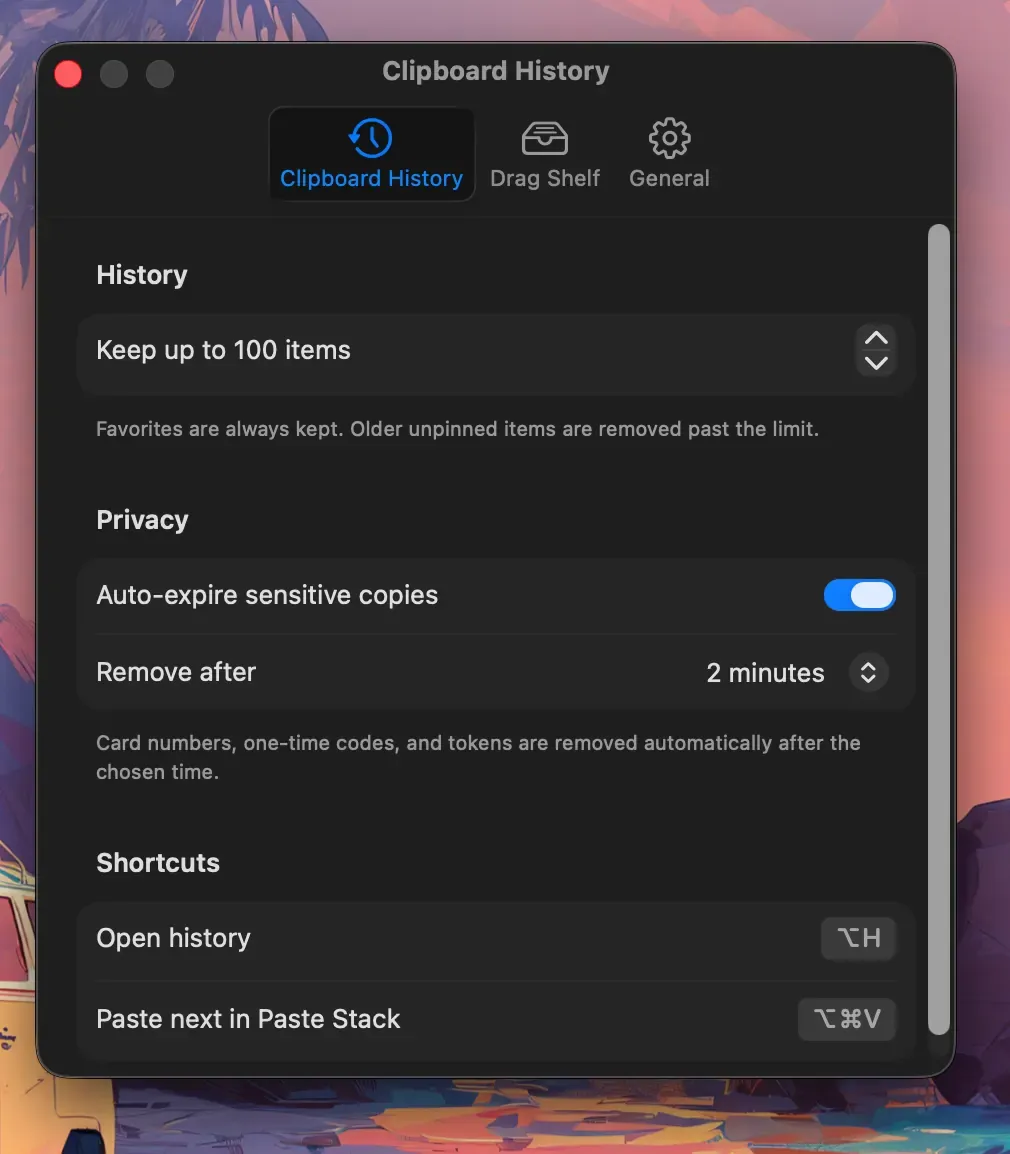
The screenshot comes from version 0.1.6. Check the labels in your installed version before following them. In particular, do not assume the example two-minute setting is the default for everyone.
Before a sensitive task, review what is already in history. Pause recording where appropriate, complete the task, then inspect your retained items before resuming normal use. Do not depend on expiry detection to catch every password, secret, or private message.
Remember the destination
Local clipboard history does not make the destination local. Pasting a private paragraph into a web service can send that paragraph to the service. Attaching a file to a message shares it through that messaging app.
The decision point is the paste or share action. Read the content and confirm the recipient before completing it. This matters whether the clipboard app stores its own history locally or uses sync.
Frequently asked questions
Is local clipboard history the same as encryption?
No. “Local” describes storage location. Do not infer a specific encryption design from that word alone.
Should I keep passwords as favorites?
Use the tool intended to manage your credentials. A clipboard favorite is designed for convenient reuse, which is a different purpose.
Is Historr right for a one-Mac setup?
It is worth testing if local history is your priority. Read the workflow comparison and explore Historr before deciding.