
How to Switch from Paste to Historr on Mac
Quick answer: Test Historr with new copies first, then manually bring over the reusable content you still need. Keep access to Paste until you have checked the results. This guide does not assume an automatic import of Paste history or pinboards.
- Author
- KainoLab Team
- Written
- Oct 13, 2026
- Product
- Historr
Changing clipboard apps is easier when you treat it as a small workflow move. Your old history may contain months of temporary copies, while only a few saved replies or links are still useful.
The goal is to keep valuable content and establish a dependable routine. Rebuilding every old clipboard entry can add clutter without helping your next task.
Step 1: List what you depend on
Before installing a replacement, make three short lists:
| List | Examples |
|---|---|
| Content to preserve | Repeated replies, project links, useful snippets |
| Behaviour to preserve | Finding recent copies, pasting into a specific app |
| Features to check separately | Device sync, saved collections, special integrations |
Paste offers workflows across Apple devices, as described on its official website. If that is central to your work, a local Mac app should not be treated as a full substitute.
Step 2: Test new copies in Historr
Install Historr, then use sample text that contains no confidential information. Copy a sentence and a link, open history, and paste them into a test document.
Historr’s setup guide covers installation, keyboard navigation, and the permission needed for pasting into other apps. Use it to resolve setup problems before moving important content.
Test the destination you use most often. A note app, browser field, and code editor can handle pasted content differently.
Step 3: Bring over a small useful collection
Open an item you want to keep in Paste and copy its content. Check that Historr captured the intended result. Give it a clear test in the destination app, then keep it using the available favorite control if appropriate.
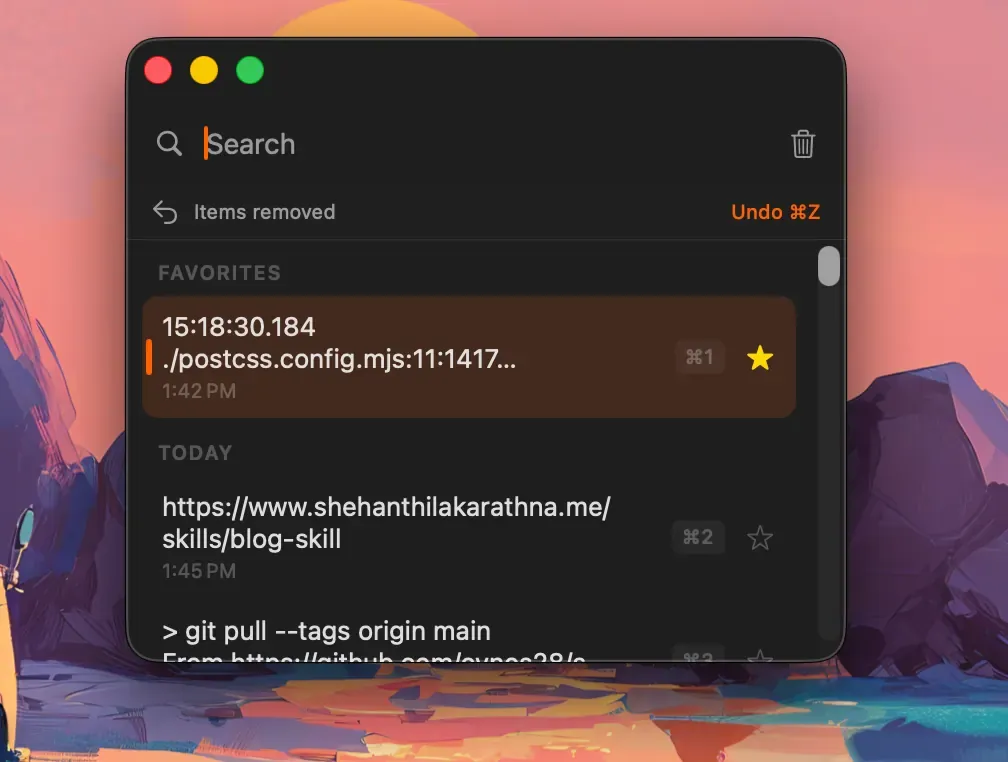
Repeat this with a small number of useful items. For images, inspect the pasted image rather than only its thumbnail. For formatted text, check links and paragraph breaks. This is a manual content move, not a transfer of all metadata or collection structure.
Keep an ordinary document containing essential reusable text as a separate reference. It makes later review easier and reduces dependence on a single clipboard history.
Step 4: Check a full work session
Use Historr for one normal task from beginning to end. Search for earlier copies, reuse one saved item, and paste into your main app. Record anything that needs a different method.
Only after the session works should you decide whether to change your previous app setup or purchase arrangement. Follow your purchase provider’s instructions if billing needs to change.
Frequently asked questions
Will Historr import my complete Paste history automatically?
This guide does not rely on a verified automatic import. The procedure above copies selected content manually.
Can I preserve my pinboard structure this way?
Manual copying transfers content, not an entire collection system. Keep a reference to your old organisation if you need to rebuild it.
What if I still need Paste on another device?
Keep the workflow that serves that need. Revisit the Historr vs Paste comparison before replacing features you rely on.
Explore Historr and begin with a small test collection.