
How to Collect Files from Multiple Folders with Historr's Drag Shelf
Quick answer: Open a Historr shelf, add files from each source folder, inspect the collection, and drag it into your destination. This gives you a temporary staging area without reorganising the original folders. Historr copies items when you drag them out of the shelf.
- Author
- KainoLab Team
- Written
- Oct 13, 2026
- Product
- Historr
Preparing an attachment set often starts with files in several places. The document is in a project folder, the image is on the Desktop, and the supporting file is in Downloads. Repeatedly switching between the destination and each source can make it easy to miss an item.
A shelf makes the collection visible before you send it. This guide uses a project brief, a reference image, and a text file as an example. Choose ordinary test files the first time you try it.
1. Decide what belongs in the final set
Make a short checklist before collecting files. Write the intended version of each document, not just its general name. “Final brief PDF” is more useful than “brief” if your folder contains several drafts.
Create or open the destination folder. Keeping it ready makes the last step easier and gives you a clear place to inspect the copies.
2. Open a Historr shelf
Use Option + Shift + D to create an empty shelf, or start dragging an item and shake the pointer while holding it. Both methods are documented in the Historr Drag Shelf guide.
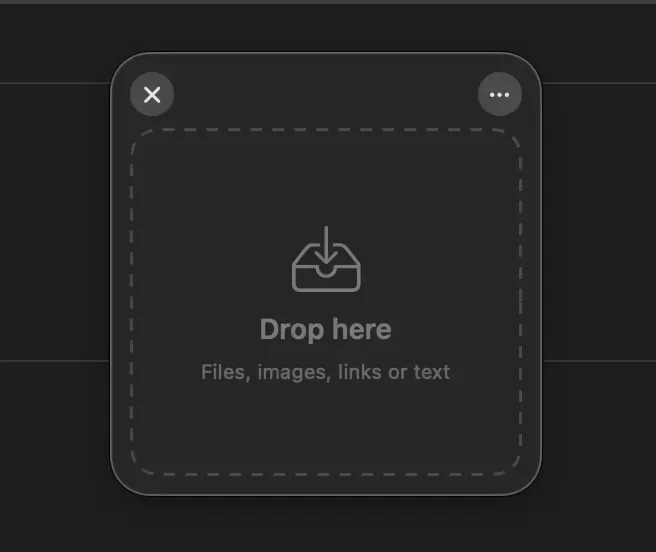
If the shake gesture does not work, use the keyboard method first. Then check the shelf settings and the permission described in the guide. A gesture problem does not necessarily mean the file collection feature is unavailable.
3. Gather and inspect the files
Add the brief, then open the image folder and add the reference. Finally, add the text file from its source location.
Click the pile or item count to inspect the contents. Compare the collection against your checklist. Look for duplicate names, outdated versions, and files that belong to another project.
Do not delete or move source files while preparing the collection. A referenced file should remain available until you complete the handoff.
4. Deliver to a review folder first
Drag the collected items into your prepared folder. Open each copied file once. This catches a wrong version or an unreadable attachment before you use Mail, a messaging app, or an upload form.
Only then attach the reviewed set to its final destination. Confirm the attachment count and the recipient. A correct shelf collection can still be sent to the wrong conversation.
Is this a useful Dropover alternative workflow?
Yes, if your task is manual file collection. If your work depends on automatic collection, evaluate that requirement separately. The Historr vs Dropover article explains the broader decision.
Frequently asked questions
Does Historr move the original files?
Its documented drag-out behaviour creates copies. The originals stay where they were.
Can I leave a shelf until tomorrow?
Do not rely on it as permanent storage. Historr shelves are temporary and are not preserved across quitting. Save the final set to a normal folder.
What if an app rejects the drop?
Use the review folder and the app’s normal attachment picker. Destination support varies by app.
Explore Historr and try this workflow with three test files.