How to Copy Text from a Screenshot on Mac with Historr
Quick answer: Open the screenshot in Preview, turn on Tools > Text Selection if needed, select the text, and choose Copy Text. Once copied, the text is on your clipboard, where Historr can keep it in history so you can find it again, paste it as plain text, or transform it.
- Author
- KainoLab Team
- Written
- Oct 13, 2026
- Product
- Historr
A screenshot is a picture, so the words in it are not normally text you can paste. Recent versions of macOS can recognize text in many images, which turns a screenshot of an error message, a receipt, or a slide into text you can select.
This guide shows the macOS route first, then explains where Historr helps: keeping the copied result so you do not have to capture the screenshot again.
How do you copy text from a screenshot?
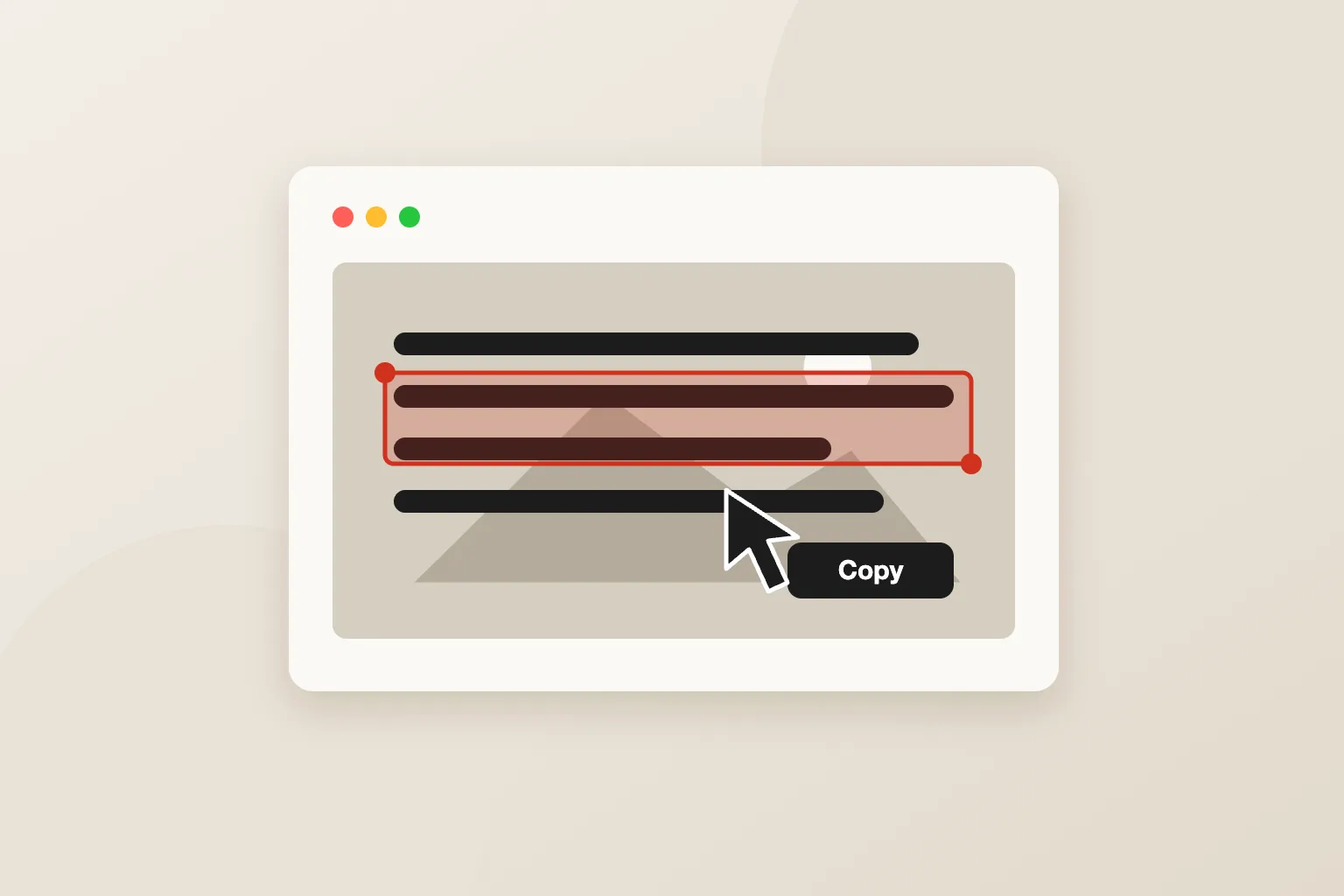
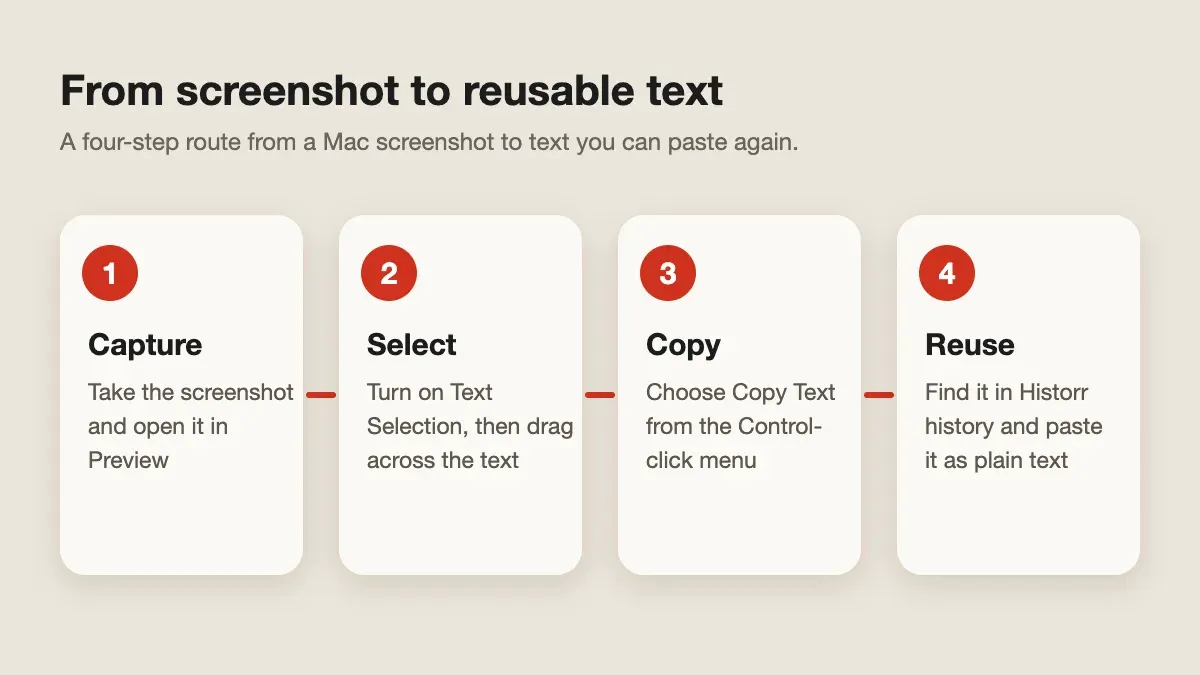
Apple’s Preview supports Live Text, which lets you work with text in an image. In Preview, hold the pointer over the text, drag to select it, then Control-click the selection and choose Copy Text. If you cannot select anything, choose Tools > Text Selection to turn the selection tool on. Apple documents the steps in its Preview Live Text guide.
- Take the screenshot. Apple’s screenshot guide lists the shortcuts.
- Open the saved image in Preview.
- Select the text and choose Copy Text.
- Paste it into your document or message.
Live Text is a macOS feature, not a Historr feature, and its availability and language support depend on your Mac and macOS version. Check Apple’s guide if the option does not appear.
What do you do when the text comes out messy?
Text recognition can add line breaks, mistake similar characters, or miss small type. Treat the result as a draft and compare it with the image for anything important, such as an amount, a reference number, or a command.
Paste into a plain text field first. That removes formatting inherited from the source and lets you correct the result before it goes into a form or an email.
Where does Historr help?
Once you copy the text, it sits on your clipboard like any other copied text. With Historr running, open your history with Option + H, search for it, and paste it again later without repeating the screenshot and selection.
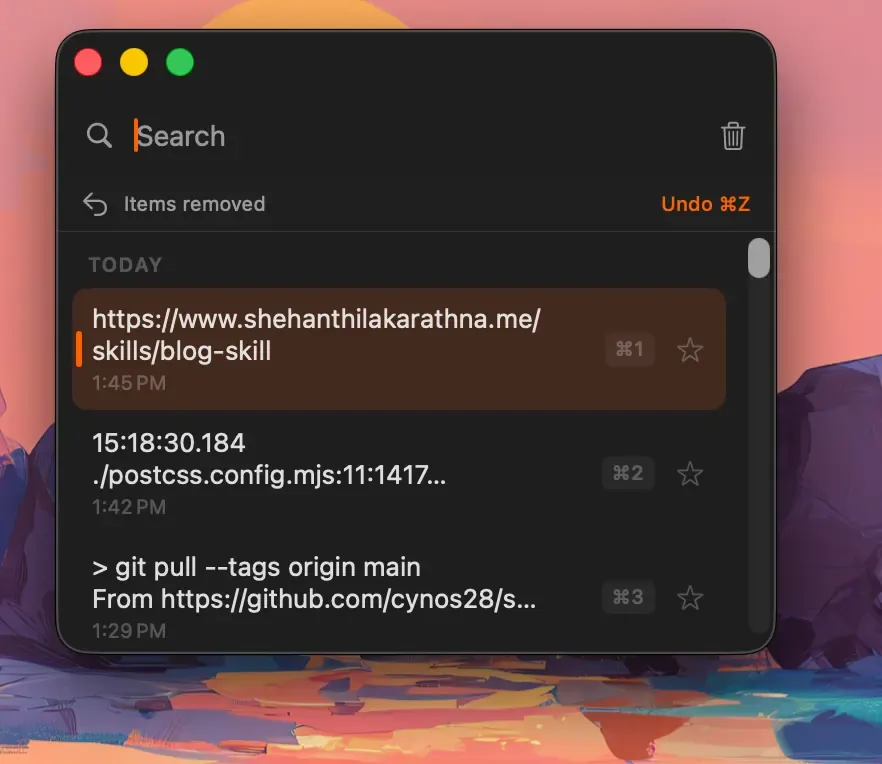
From the context menu, Paste as offers Plain Text, Trimmed, lowercase, UPPERCASE, slug-case, and Pretty JSON. Trimmed is useful when recognition leaves extra spaces at the ends of a line. Our guide to pasting plain text and transforming copied text explains each choice.
Historr’s Drag Shelf also has an Extract Text action. Its documentation says it reads the text in images on your Mac and copies it to the clipboard, so it is a second route when you prefer to stay in Historr. Check the result either way, as with any text recognition. Historr’s Drag Shelf documentation describes it.
Should you copy sensitive text from screenshots?
Be careful with screenshots of passwords, card numbers, or one-time codes. Historr can remove detected sensitive copies after a time you choose, but detection is not a guarantee. Review the auto-expire guide before relying on it, and delete the screenshot file when you no longer need it.
Quick checklist
- Open the image in Preview and use Text Selection.
- Check the copied text against the image.
- Paste as plain text for forms and messages.
- Use Historr history to find the text again instead of repeating the work.
Explore Historr and test the routine with a harmless screenshot first. KainoLab makes Historr and provides this guide.