
How to Auto-Expire Sensitive Clipboard Copies on Mac
Quick answer: In Historr's Clipboard History settings, enable Auto-expire sensitive copies and choose a removal duration. The screenshot shows two minutes and identifies card numbers, one-time codes, and tokens. Use Pause Recording when a task should not be captured, and do not treat detection as a guarantee for every sensitive item.
- Author
- KainoLab Team
- Written
- Oct 8, 2026
- Product
- Historr
Some copied information is useful for only a short task. Leaving it in a searchable history longer than needed may be unnecessary.
Historr provides controls for sensitive-copy expiry and pausing recording. Choose them according to what you handle rather than assuming one setting fits all work.
Where is the auto-expire control?
Open Historr’s settings and select Clipboard History. In the screenshot, the Privacy section contains:
- Auto-expire sensitive copies, shown enabled.
- Remove after, shown set to two minutes.
- An explanation naming card numbers, one-time codes, and tokens.
The screenshot documents one configuration. It is not proof that every installation starts with two minutes or that every private string will be recognized.
Read the current Historr documentation if your installed version shows different controls.
What does the expiry duration mean?
The duration is the selected removal window for copies treated as sensitive by the app. Choose a period that fits the short task without keeping detected entries longer than necessary.
Automatic handling is useful, but the setting should not decide what you are allowed to copy. If your organization prohibits retaining certain material, follow that requirement.
| Control | What it addresses | What it does not establish |
|---|---|---|
| Sensitive-copy expiry | Retention of detected sensitive entries | Detection of every private item |
| Pause Recording | Capturing new copies during a session | Removal of previously saved entries |
| History limit | Size of ordinary retained history | A precise expiry time for every clip |
| Item deletion | A selected saved entry | Deletion from every other app or record |
This distinction helps you choose the right action instead of expecting one privacy switch to do everything.
How do you configure it?
- Open Clipboard History settings.
- Review the sensitive-copy toggle.
- Choose the removal duration using the shown control.
- Read the explanation beside the setting.
- Test the interface with harmless practice material.
- Inspect what remains in history after the task.
- Review favorites separately when retained entries matter.
Do not use real card details or access tokens as demonstration content. You can learn the controls without creating a new sensitive-data retention problem.
A generic test phrase is suitable for checking whether recording is paused. It does not validate the sensitive-data detector.
When should you pause recording?
Use Pause Recording from the Historr menu bar when the current task should not be captured in history.
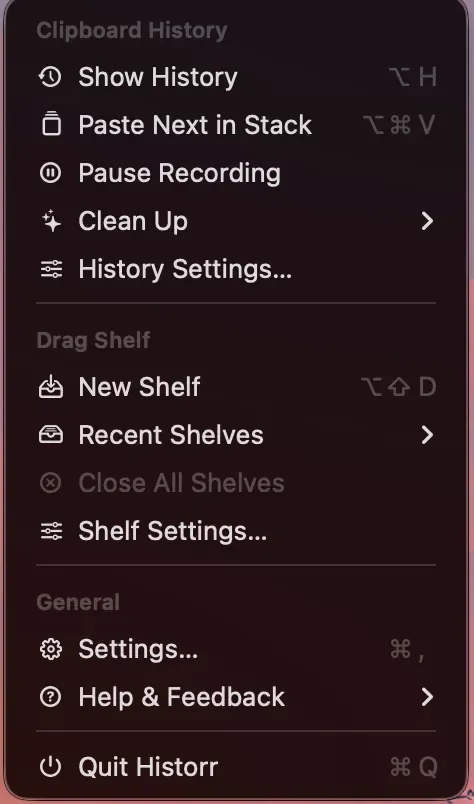
Pausing capture and removing existing entries are separate actions.
Check the current recording state before returning to ordinary work. If a copied item does not appear later, recording may still be paused.
If you need to clear saved content, read the history cleanup guide. Historr’s documentation says favorites survive Clear History, so inspect those entries separately.
Does local storage make every copy safe?
Historr states that its history is stored locally without cloud sync. That describes the app’s storage approach; it does not establish that every destination, device backup, or person with device access is appropriate for the information.
Do not infer a specific encryption scheme or legal compliance certification from these screenshots. They show controls, not an independent security audit.
The product’s convenience should fit your existing handling rules rather than override them.
How do you keep the workflow practical?
Start each sensitive task by checking recording state. Finish by checking the entries you no longer need and the controls relevant to them.
Avoid storing credentials in reusable templates. For approved ordinary text, use favorites or the Paste Stack workflow.
Explore Historr and review its settings against your actual Mac workflow. KainoLab makes Historr and provides this guide.