A Free Yoink Alternative for Mac: Historr's Shelf and History
Quick answer: Historr is a free Yoink alternative when you need a temporary file shelf and local Mac clipboard workflows. Yoink also offers clipboard history, older macOS support, and device handoff features. Choose by those requirements rather than assuming that a shelf comparison is only about price.
- Author
- KainoLab Team
- Written
- Oct 8, 2026
- Product
- Historr
Dragging a file while opening another window can feel awkward. A shelf lets you release the drag, navigate to the destination, and collect the pieces you need.
Historr and Yoink both address that task. This comparison comes from KainoLab, the maker of Historr, with Yoink information checked on 8 October 2026.
What does Yoink already provide?
Yoink’s official Mac page describes a temporary shelf, clipboard history, Quick Look, and Handoff. Device handoff to an iPhone or iPad requires its separately available mobile app.
The page currently lists macOS 10.13 High Sierra or later and a one-time purchase. It also offers a trial.
It would be inaccurate to say Yoink has no clipboard history. The useful question is whether its controls or Historr’s controls better fit your tasks.
What is Historr’s approach?
Historr combines its history window, Paste Stack, text transformations, and Drag Shelf in one Mac utility. The menu gives separate actions for opening history, pasting the next stack item, and creating a shelf.
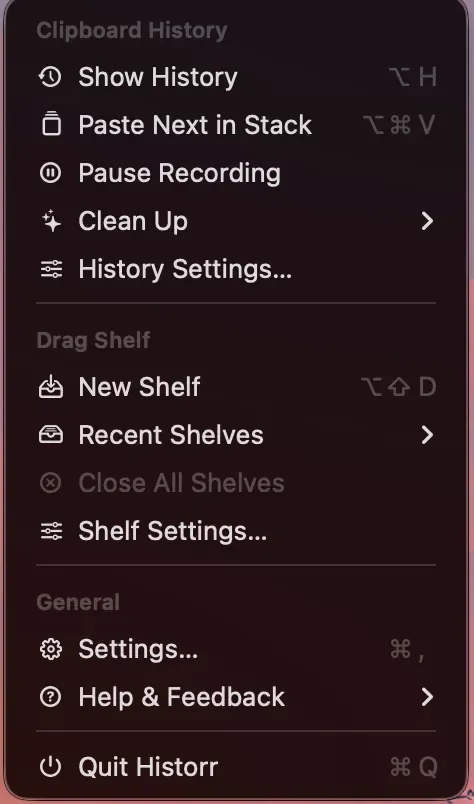
Separate menu groups make it clear whether you are retrieving a copy or collecting dragged material.
Historr is for local Mac use. Do not choose it expecting the same cross-device handoff workflow described by Yoink.
Compare the requirements that matter
| Requirement | Historr | Yoink |
|---|---|---|
| Temporary drag-and-drop shelf | Included | Included |
| Clipboard-history capability | Included | Documented by the developer |
| Sequential text queue | Historr Paste Stack | Verify the exact workflow you need |
| Device handoff | Not presented as a cross-device tool | Documented with a separate mobile app |
| Supported macOS baseline | macOS 13 or later | macOS 10.13 or later on the official page |
| Purchase approach | Free | Paid one-time purchase, with trial |
A trial, a paid license, and a permanently free app are different arrangements. Check the current official pages before making a purchase decision.
Use the shelf for one clear task
For a practical test, gather a PDF and an image from different folders.
- Open a new Historr shelf.
- Drop the first sample item on it.
- Navigate to the second item’s folder.
- Add that item.
- Confirm the collection count.
- Drag the collection into a test folder or supported app.
- Inspect what arrived.
The screenshot above shows two items collected on Historr’s shelf. It does not establish that every destination will accept every file type.
Keep source files in your project folders. A temporary collection is useful while moving between windows; it is not a permanent file catalog.
What should you know about file movement?
Yoink’s developer explains that dragging out follows Finder-style moving and copying behavior. Review that documentation if you are comparing file-handling expectations.
For Historr, test the destination with sample files and inspect the originals. Avoid importing one app’s documented behavior into another app without checking.
If you prefer a shake-to-open workflow, read the Historr and Dropover comparison. If a shelf does not open as expected, use the troubleshooting checklist.
Which tool is the better fit?
Consider Yoink when older macOS compatibility or its device integrations are important. Consider Historr when free local Mac use, an ordered text queue, and a shelf belong in the same daily routine.
Try the actual task rather than judging screenshots alone. A small test with harmless files tells you whether the interaction suits your setup.
Explore Historr and follow the clipboard-history guide if finding earlier copies is your other main requirement.