
Historr Drag Shelf Not Opening? Mac Settings and Fixes
Quick answer: First open a shelf manually from Historr's menu. If that works, check Shake while dragging to open a shelf and its sensitivity setting. Also inspect Accessibility in General settings because the interface says it is needed for detecting shakes. Test with a harmless Finder file.
- Author
- KainoLab Team
- Written
- Oct 8, 2026
- Product
- Historr
A shelf that fails to appear can have several causes: the gesture is disabled, sensitivity does not suit your movement, required access is missing, or the attempted drag does not behave as expected.
Work through these checks one at a time. The guide uses settings visible in the screenshots, including a General view labeled version 0.1.6.
Can you open a shelf manually?
Choose New Shelf from Historr’s menu bar. The menu and Drag Shelf settings show Option + Shift + D for a new empty shelf.
If an empty shelf appears, basic opening is working. Focus next on the shake gesture rather than changing every setting.
If it does not appear, confirm Historr is running and inspect its menu. Use the product’s help route when the controls differ from these screenshots.
Is shake-to-open enabled?
Open Settings > Drag Shelf. The screenshot shows the toggle Shake while dragging to open a shelf.
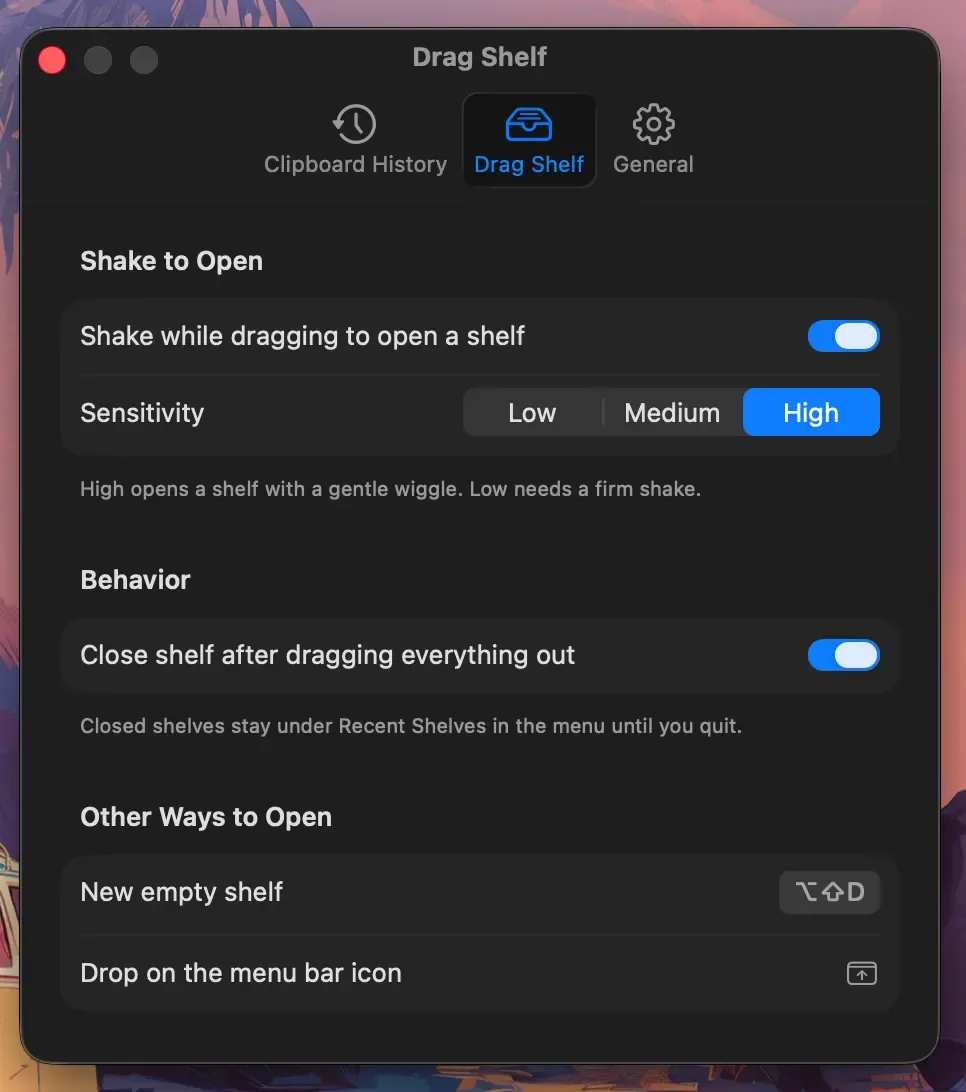
The shown High setting needs a gentler movement according to the interface explanation.
The wording matters: perform the gesture while dragging an item. Simply shaking an idle pointer is not the workflow described here.
Start with a harmless file in Finder so you can see whether an actual drag is active.
Does the sensitivity suit your pointer movement?
The screenshot shows Low, Medium, and High choices. Its explanation says High opens a shelf with a gentle wiggle and Low needs a firm shake.
Try a different sensitivity while keeping the test file and destination unchanged. That makes the result easier to interpret.
Do not keep adjusting several settings at once. If manual opening works and the gesture starts working after a sensitivity change, record that result before changing anything else.
Is Accessibility enabled?
Open General in Historr’s settings. The screenshot shows Accessibility as Enabled and says it is needed to paste into other apps and detect shakes while dragging.
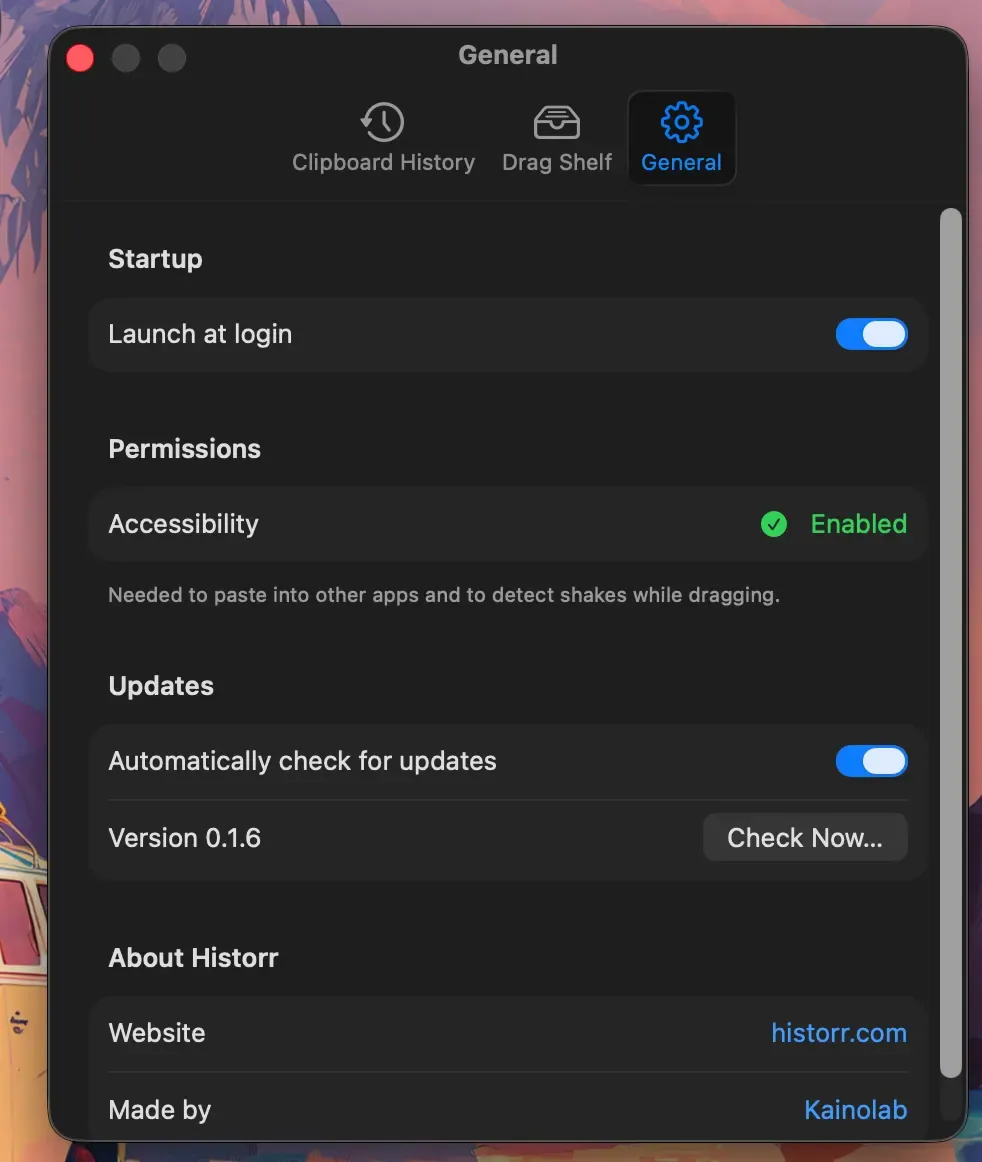
This screenshot shows the permission enabled on the captured Mac, not on every user’s device.
Historr’s official setup documentation points to System Settings > Privacy & Security > Accessibility for granting access.
Follow the documented setup and your organization’s software policy. Re-test the same harmless file after changing permission status.
Use another opening method when needed
The Drag Shelf settings also show Drop on the menu bar icon. That offers another route to investigate if you prefer not to use a shake.
Once the shelf is open, add one sample item and inspect the result before collecting more.
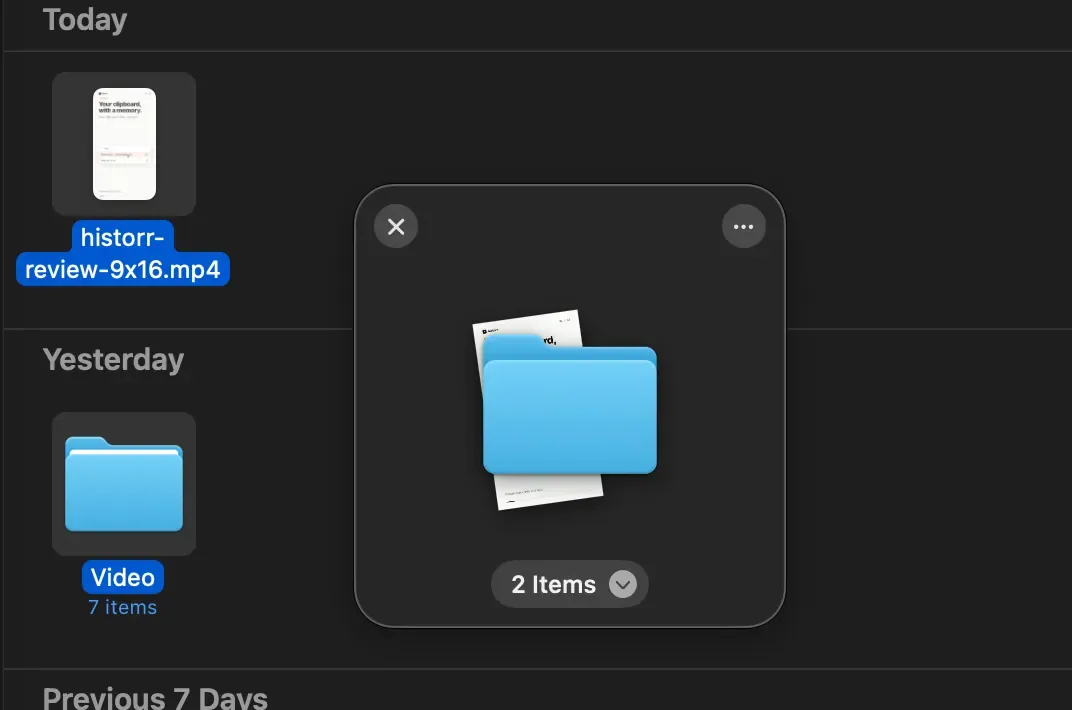
Verify the collection before dragging items into the destination.
Temporary collection is not the same as sending a file or saving an archive. Inspect the actual destination after dragging items out.
Why did the shelf close after dragging everything out?
The screenshot shows Close shelf after dragging everything out enabled. That may explain a shelf disappearing after its collection is emptied.
The accompanying text says closed shelves stay under Recent Shelves in the menu until you quit. Treat that as the behavior described by the captured version, not permanent storage.
Check Recent Shelves when you need to inspect a recently closed collection during the session.
A focused troubleshooting checklist
| Observation | Next check |
|---|---|
| Manual shelf opens, gesture does not | Shake toggle, sensitivity, active drag |
| Neither method opens a shelf | App running state and current help instructions |
| Gesture detection fails | Accessibility status and same-file re-test |
| Shelf closes after emptying | Close-after-dragging setting |
| Destination does not accept an item | Destination support and the item’s type |
If the issue remains, use Help & Feedback from the menu and include the app version, macOS version, and the opening method you tried. Describe the result without sending private client files.
For choosing a shelf app, read the Dropover comparison or Yoink comparison. Visit Historr for current product information.