
How to View Clipboard History on Mac and Find Earlier Copies
Quick answer: On Mac systems with Spotlight clipboard history, open Spotlight with Command + Space and choose Clipboard. In Historr, press Option + H to open saved copies, search for a remembered word, and paste the selected item. Both methods depend on what was recorded and is still retained.
- Author
- KainoLab Team
- Written
- Oct 8, 2026
- Product
- Historr
You copied a useful link, then replaced it with another copy. Finding the first link should not require reopening every browser tab. Clipboard history gives you a place to look, provided it was enabled before the item disappeared.
There are two useful routes: the clipboard history included with supported macOS versions, and a dedicated clipboard manager such as Historr.
Does Mac have built-in clipboard history?
Newer Mac systems offer clipboard history through Spotlight. Apple’s current instructions say to open Spotlight, choose the Clipboard button or press Command + 4, and enable access if prompted. Search for an item, copy it again, then paste it into the destination. Apple’s clipboard-history guide
Check the guide for your installed macOS version. Do not assume every older Mac has the same Spotlight controls.
If you use a supported version without that view, or want a dedicated history tool, Historr runs on macOS 13 Ventura or later. See the Historr product overview for the platform requirements.
How do you open history in Historr?
Press Option + H, or use Show History from the Historr menu bar icon. The screenshot shows a search field, a Today group, and numbered shortcuts beside saved items.
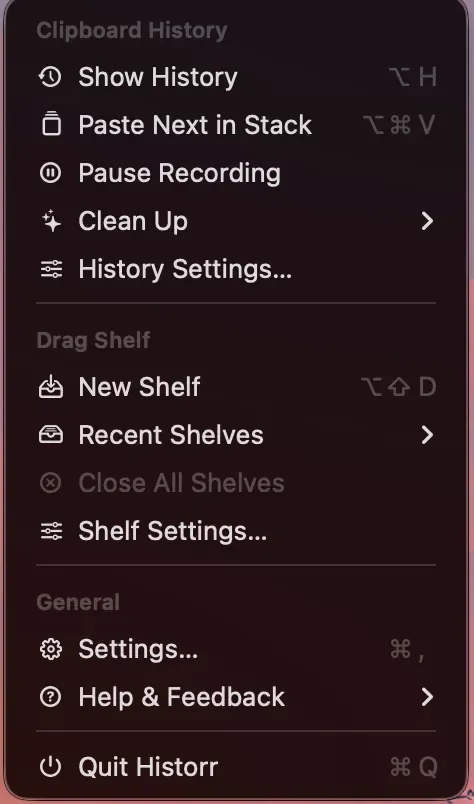
The menu provides a clickable way to open history as well as the keyboard shortcut.
Start with a harmless text item. Copy a short phrase from a test document, copy something else, then open Historr and look for the first phrase. That confirms recording is working for the current task.

Search for a remembered word or inspect recent copies before choosing an item.
How do you find and paste an earlier item?
- Open Historr.
- Type a distinctive word from the text or link.
- Check the matching item before selecting it.
- Choose the item and press Return to paste.
- Read the result in the destination.
The official Historr documentation explains the keyboard controls, including arrow-key selection and Command + 1 through Command + 9 for numbered items.
Search using something specific. A project name or domain fragment is more useful than a common word that appears in many entries.
If the item is a link, Historr’s context menu also shows Open Link. Opening a saved URL and pasting its text are different actions, so choose the one your task needs.
Which method fits your work?
| Need | Useful starting point |
|---|---|
| Find a recent copy using existing system tools | Check Spotlight’s Clipboard view |
| Open a dedicated history window | Historr’s Option + H shortcut |
| Keep useful snippets near the top | Historr favorites |
| Paste separate values in order | Historr Paste Stack |
| Collect dragged files between windows | Historr Drag Shelf |
This table identifies workflows, not a claim that one tool is best for every Mac user.
Can history recover something copied before recording started?
Do not expect a newly installed tool to restore copies it never recorded. Check the original document, browser page, message, or app’s own undo and version history when the item is absent.
A history limit, deletion, or sensitive-copy expiry can also explain a missing entry. Read the history and favorites guide before changing retention settings.
What if the item appears but will not paste?
Confirm the intended destination has focus. Historr’s General settings show Accessibility permission because pasting into other apps needs that access.
Try a blank text document first. If that works, check whether the destination accepts the item’s format. For a queue of separate text values, use the Paste Stack tutorial.
Get Historr if a dedicated, local Mac clipboard workflow fits your needs. KainoLab makes Historr and publishes this guide.