
How to Paste Multiple Copied Items One by One on Mac
Quick answer: Add the text items you need to Historr's Paste Stack in the order you want to use them. Focus the first destination field, then press Option + Command + V to paste the next item. Move to each intended field yourself and check every result before continuing.
- Author
- KainoLab Team
- Written
- Oct 8, 2026
- Product
- Historr
Copying several values is useful only if you can put them back in the right places. A history list lets you select old copies. A Paste Stack gives you a planned sequence.
This tutorial uses the controls shown in the Historr screenshots and the official documentation. It describes a text workflow, not automatic form submission.
What is a Paste Stack?
A Paste Stack is a queue of copied text items. Each “paste next” action supplies the next item in that queue.
The context menu shows Add to Paste Stack. The menu bar shows Paste Next in Stack, with the shortcut Option + Command + V.
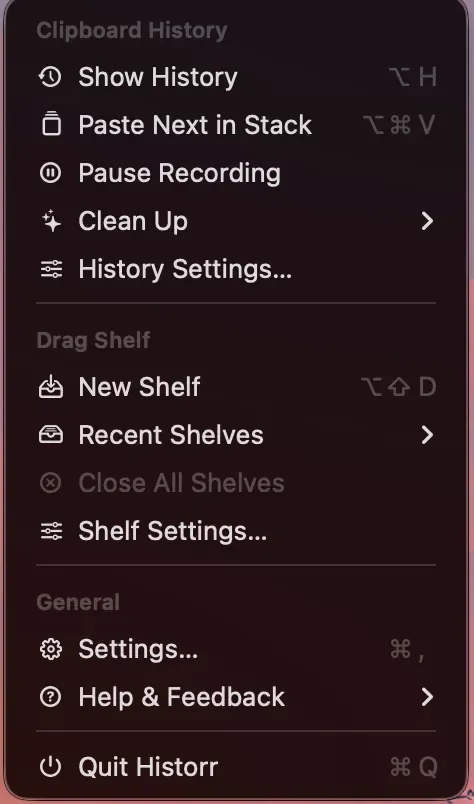
The next-item shortcut is different from ordinary Command + V.
Use it when several values belong in separate fields. If you need one combined paragraph, preparing that paragraph in a document may be simpler.
Plan the order first
Read the destination before building the stack. Forms may include menus, checkboxes, or fields that appear only after another choice.
| Field | Fictional practice value | Check |
|---|---|---|
| Name | Alex Example | Correct field and spelling |
| Website | https://example.com | Public URL, not an access token |
| Role | Product designer | Fits the destination |
| Project note | Review the landing page | Complete enough to understand |
These are test values. Start in a blank document or a test form before using real records.
The queue provides values; it does not understand the meaning of a name field or choose the next destination.
Add the copied text to the stack
- Copy the first intended value.
- Open Historr with Option + H.
- Find the matching entry.
- Open its context menu.
- Choose Add to Paste Stack.
- Repeat for the remaining values in the planned order.

Add to Paste Stack is available from the selected clip’s context menu.
Check the queue state in the running app before you begin the destination task. If you are unsure which items remain, clear the stack and rebuild a short sequence.
Historr’s documentation says the Paste Stack is a text operation. Use the Drag Shelf guide for collecting files rather than treating a text queue as a file-transfer tool.
Paste into separate fields
Click the first destination field and press Option + Command + V. Inspect what appeared before moving focus.
Then choose the next field and paste the next item. Use Tab only when you know it moves to the correct control.
If the wrong item lands in a field, stop. Correct that field and inspect the queue before continuing. Repeatedly pressing the shortcut without checking can shift the rest of the sequence.
For spreadsheet tasks, verify the selected cell and how the destination handles line breaks. A text queue does not replace a bulk import or the spreadsheet’s data validation.
How do you clear the remaining queue?
The menu shows Clean Up > Clear Paste Stack.
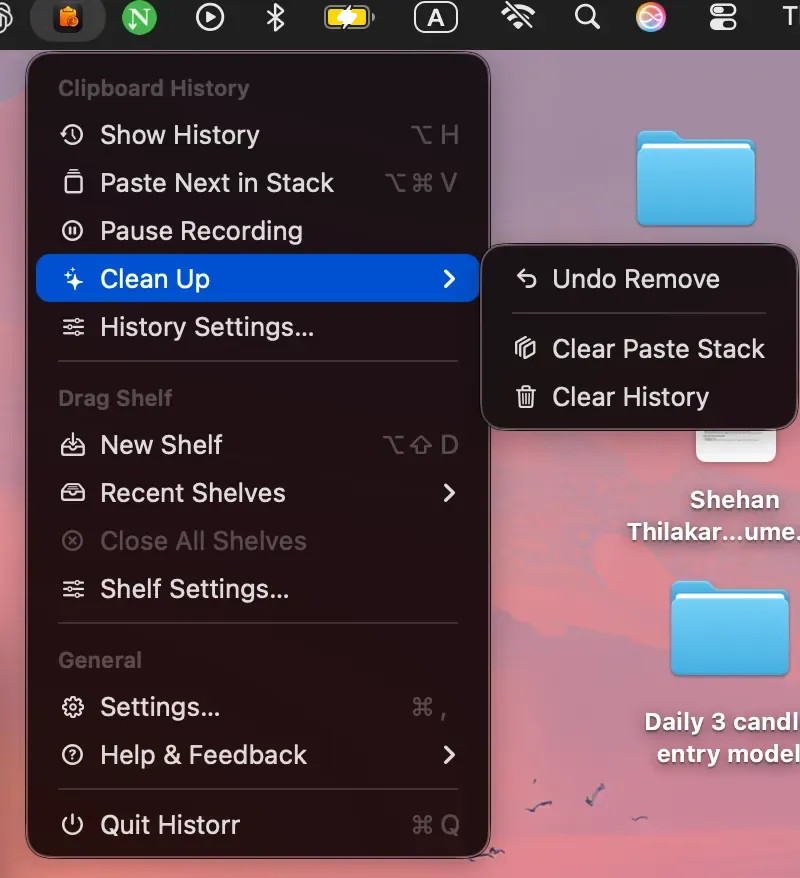
Clear Paste Stack and Clear History are separate commands.
Clear the queue when you finish a task or decide to rebuild its order. Do not assume that clearing the stack also removes every copied item from history.
For history cleanup and favorites, read the history management guide.
What if the shortcut does not paste?
Confirm the destination is active, the queue contains text, and Historr is running. Check Accessibility in General settings if pasting into other apps is not working.
Try a harmless text document before troubleshooting a complicated form. If ordinary history paste works but stack paste does not, check the queue state and the shortcut shown in the current app.
Get Historr to try the workflow. KainoLab makes the app and publishes these practical guides.