
How to Save, Search, and Clear Clipboard History on Mac
Quick answer: Star useful Historr entries to keep them in Favorites, search history for temporary copies, and review the history limit in Clipboard History settings. Use the cleanup commands for the task you intend. Favorites are retained separately, so clearing ordinary history is not the same as deleting every saved item.
- Author
- KainoLab Team
- Written
- Oct 8, 2026
- Product
- Historr
A useful history contains a few entries you want again and many copies you only needed briefly. Treat those groups differently.
The screenshots show Historr’s Favorites section, a history limit, and cleanup commands. This guide explains how to use them without making a history list your only source of important information.
What should you save as a favorite?
Keep entries that are both reusable and current. A public project URL, approved reply, or frequently used text fragment can be a good candidate.
Open the item’s context menu and choose Favorite, or use its star control. The screenshot shows a yellow star beside an entry grouped under Favorites.
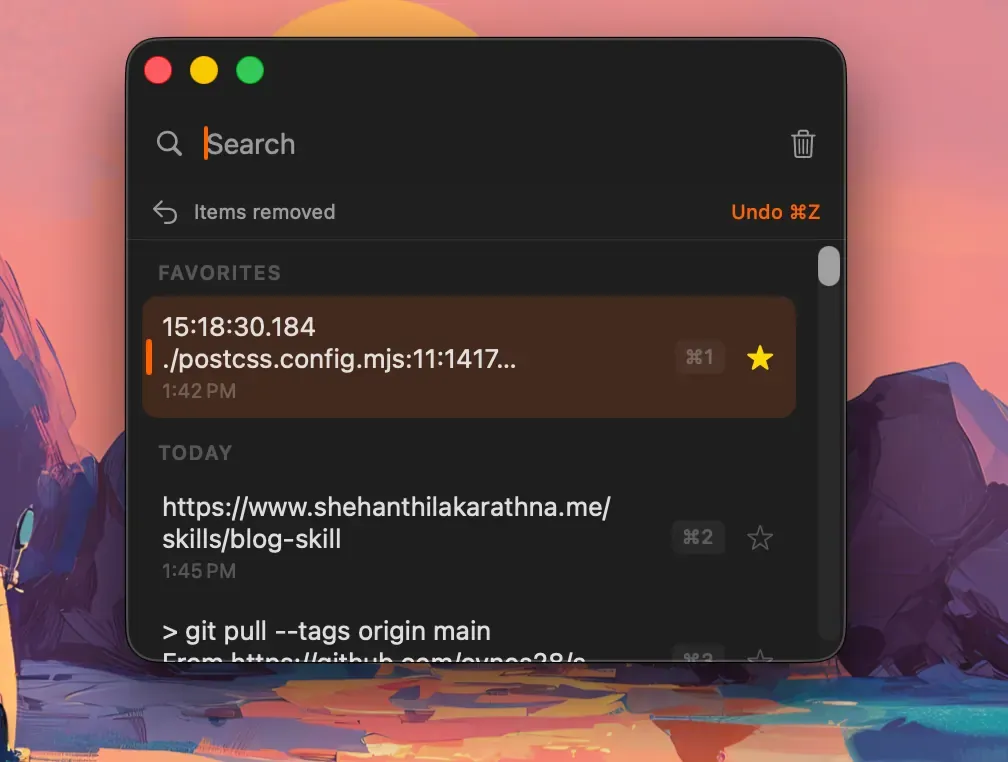
The yellow star identifies a saved favorite in the captured interface.
Review saved text before reuse. A favorite does not know that a deadline, link, or response has become outdated.
Important project records should stay in a normal document or approved system. Favorites are convenient access, not an approval record.
How do you search for a recent copy?
- Open history with Option + H.
- Type a distinctive word or part of a URL.
- Read the matching entry.
- Select the intended item.
- Paste it into the correct destination.
- Check the result.
If several entries look alike, return to the source rather than guessing which is approved.
The clipboard-history guide covers the basic opening and retrieval workflow, including the Spotlight option on supported Mac systems.
What does the history limit remove?
The Clipboard History settings show Keep up to 100 items. The explanatory text says favorites are always kept and older unpinned items are removed past the limit.
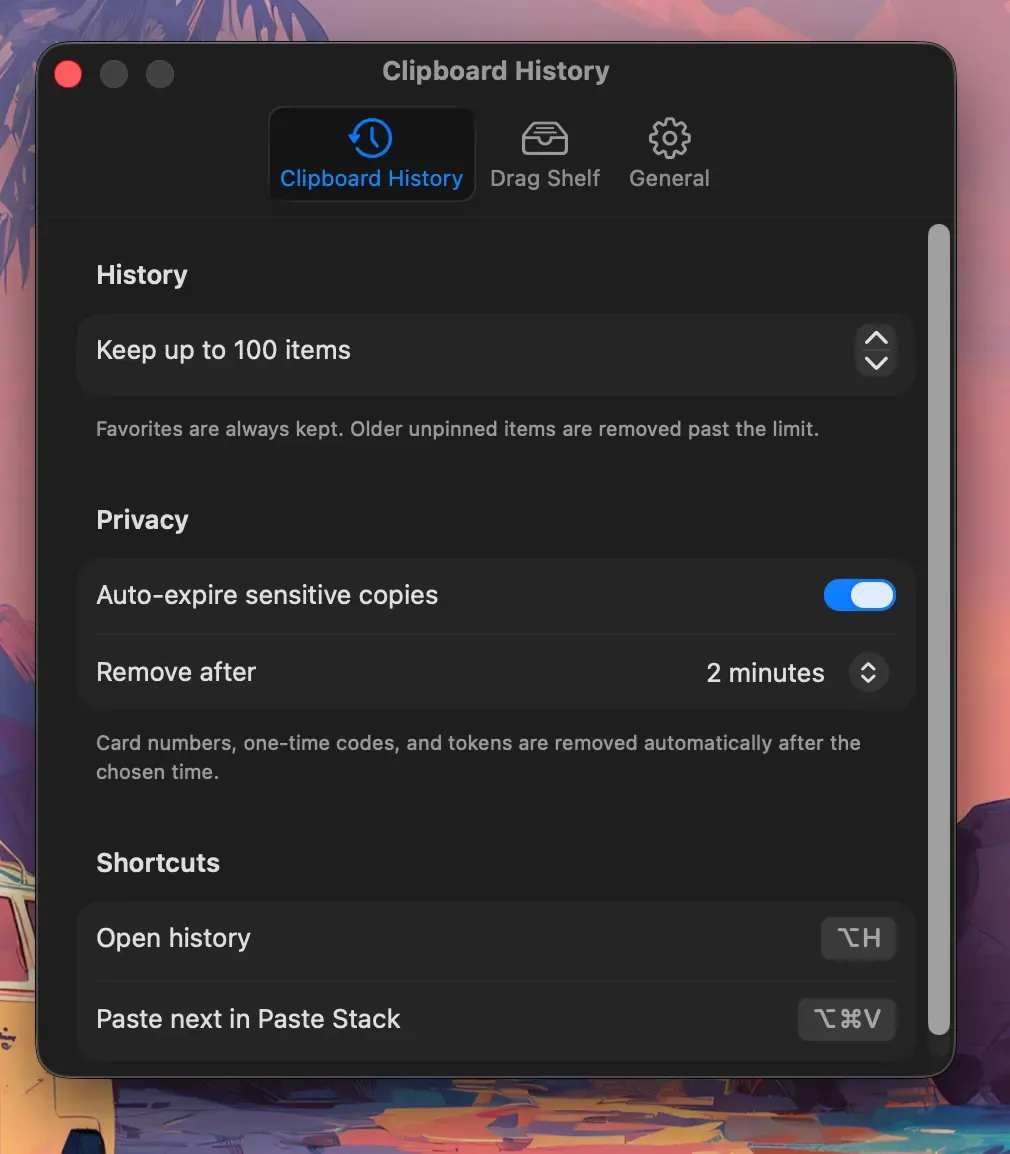
The number in this screenshot is the shown configuration, not a guaranteed default for every installation.
Choose a limit that fits your work, then check how the current version handles it. A larger collection may make older entries easier to find, but also leaves more copied material available.
If something is missing, check the limit, deletion history, recording state, and sensitive-copy expiry before assuming the app failed to capture it.
Which cleanup command should you use?
| Command shown in the menu | Intended action |
|---|---|
| Delete on an individual item | Remove the selected clip |
| Clear Paste Stack | Clear the ordered paste queue |
| Clear History | Clear ordinary history according to the app’s rules |
| Undo Remove | Reverse a recent removal when available |
| Pause Recording | Stop capturing new copies until recording resumes |
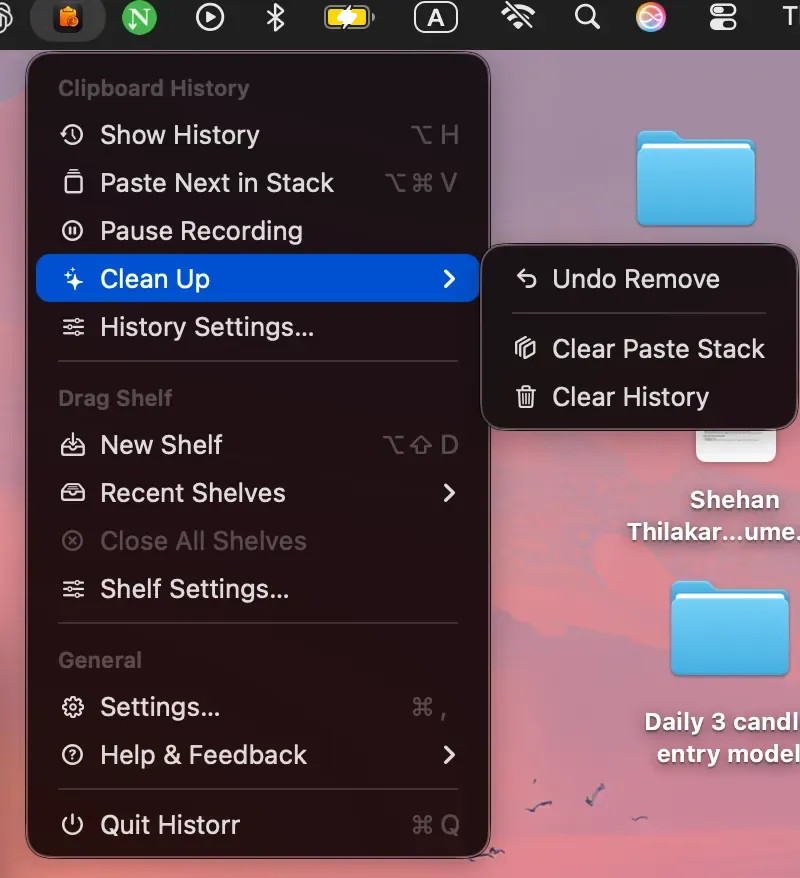
Choose the specific command instead of treating every cleanup action as equivalent.
Historr’s official documentation states that favorites survive Clear History and describes undo for recent deletes or clears. Do not assume every removal is recoverable indefinitely.
How should you remove a saved favorite?
Inspect the Favorites section separately. If an entry should no longer be retained, delete that specific entry using the current app controls.
Simply turning a favorite into an ordinary entry may not remove it immediately. Verify what remains after the cleanup operation rather than relying on the star’s appearance.
Practice with harmless text if you are learning the behavior. Do not use a real secret as a deletion test.
What if you need a temporary ordered list?
Use Paste Stack for a current task instead of turning every field value into a long-term favorite. The sequential paste tutorial explains queue order and field focus.
For private material, review the sensitive-copy settings guide. Retention, recording, and expiry are different controls.
Keep the useful entries current
At the end of a project, inspect favorites and remove obsolete wording. Test important links before reusing them in a new message.
Review Historr if searchable local history and a small reusable set fit your Mac workflow. KainoLab makes the product and publishes this guide.