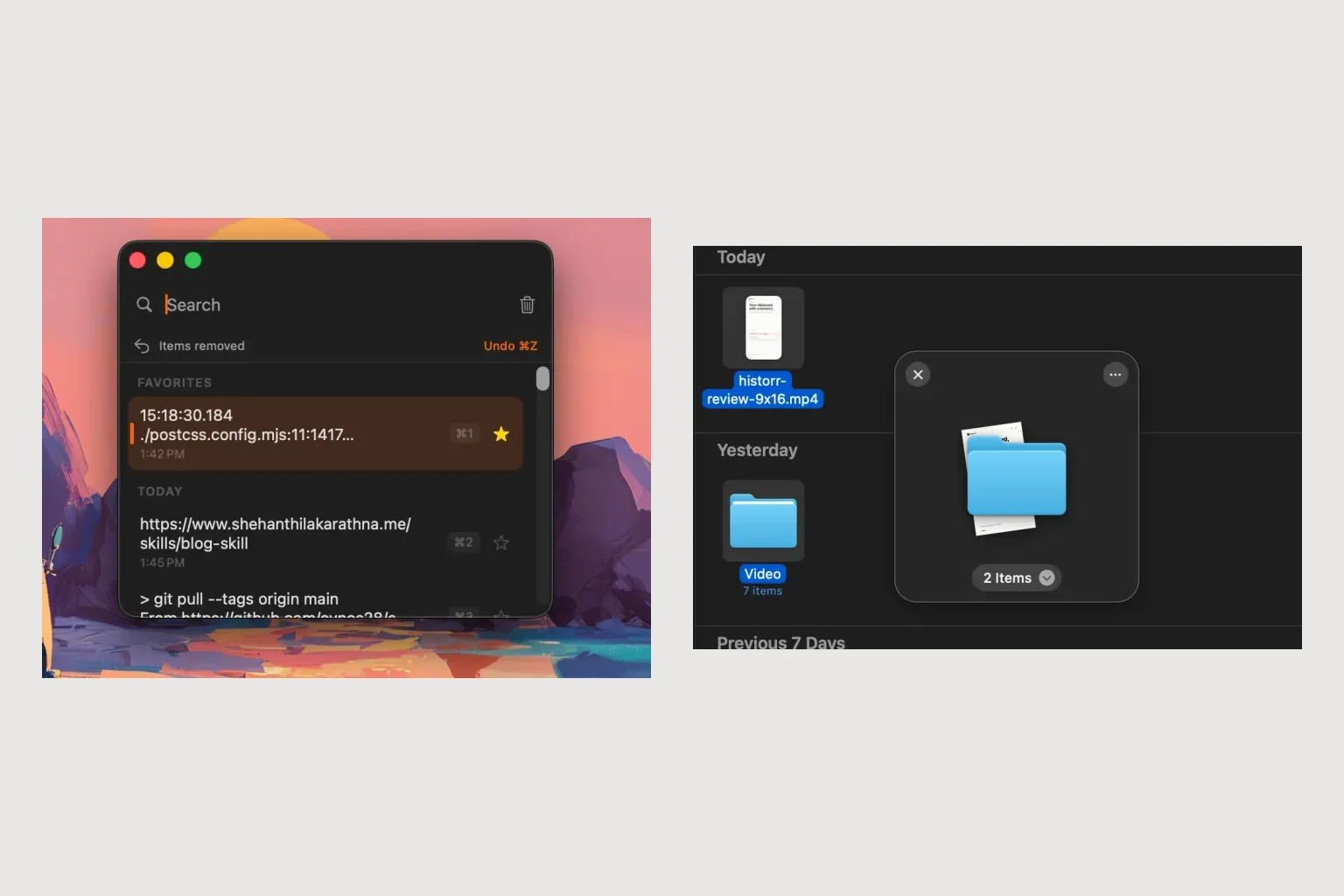
A Dropover Alternative for Preparing Job Application Files
Quick answer: Historr can help prepare a job application by keeping copied answers available while a drag shelf gathers the correct resume and portfolio files. It does not fill application forms automatically, and you should verify every field and attachment before submitting.
- Author
- KainoLab Team
- Written
- Oct 23, 2026
- Product
- Historr
Publisher disclosure: Historr is made by KainoLab. This guide uses official product documentation and hypothetical workflow examples, not independent benchmark results. Product details checked on 23 October 2026. The cover pairs two real screenshots; it is not a single app window.
Give each application its own checklist
A tailored application often needs a particular resume, a relevant portfolio and answers written for one role. The main risk is using a good answer or file from the wrong application.
For this hypothetical workflow, create a checklist with the employer, role title, resume filename, portfolio filename and required answers. Store the documents in a normal folder with clear names. Avoid names such as final-final.pdf, which make the shelf harder to review.
Prepare copied answers without losing context
Use Historr clipboard history to find text you copied while preparing the application. Read the full answer before pasting. Check company names, pronouns, dates and references to the position.
For several prepared answers, Paste Stack can hold selected entries in order. Focus the intended field and paste the next entry with Option-Command-V. Review each field immediately because forms can differ in layout and length limits.
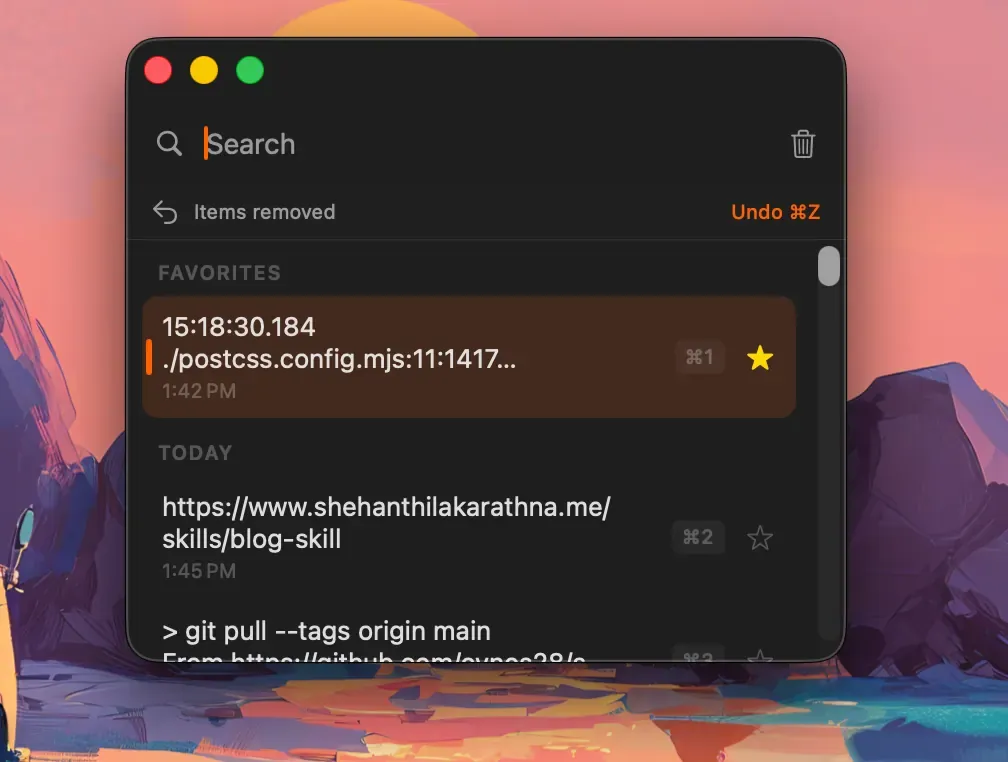
Real Historr screenshot supplied on 8 October 2026. It illustrates the interface; workflow examples in this article are hypothetical.
The screenshot illustrates Historr’s saved-item interface. It does not contain an actual applicant’s answers.
Stage only this role’s files
Open a shelf with Option-Shift-D and add the resume and portfolio chosen for this application. Preview both before uploading. If the website provides a drag-and-drop upload area, drag the appropriate file there and wait for the site’s confirmation. Otherwise, use its file picker from the normal source folder.
Historr’s shelf guide describes a temporary collection, not a browser upload integration. The receiving site decides accepted file types, sizes and whether dragging is supported.
Why consider it alongside Dropover?
Dropover’s tips document adding clipboard content to a shelf. Historr’s relevant combination is broader than simply accepting a copied item: its history can help retrieve earlier answers while its shelf holds the selected documents. Evaluate that combination against your existing routine rather than assuming you need to switch.
Before submitting, compare the form with your checklist and read back the uploaded filenames. Save the final answers and submission confirmation outside Historr. Do not depend on a temporary shelf to record what you sent.
Read the one-app walkthrough, then try Historr with sample documents before preparing a real application.