Clipboard History and a Drag Shelf in One Mac App
Quick answer: Use Historr clipboard history to retrieve copied text, Paste Stack to paste selected entries in order, and the drag shelf to gather files. These are separate views in one Mac app; a shelf is temporary and does not replace a project folder.
- Author
- KainoLab Team
- Written
- Oct 23, 2026
- Product
- Historr
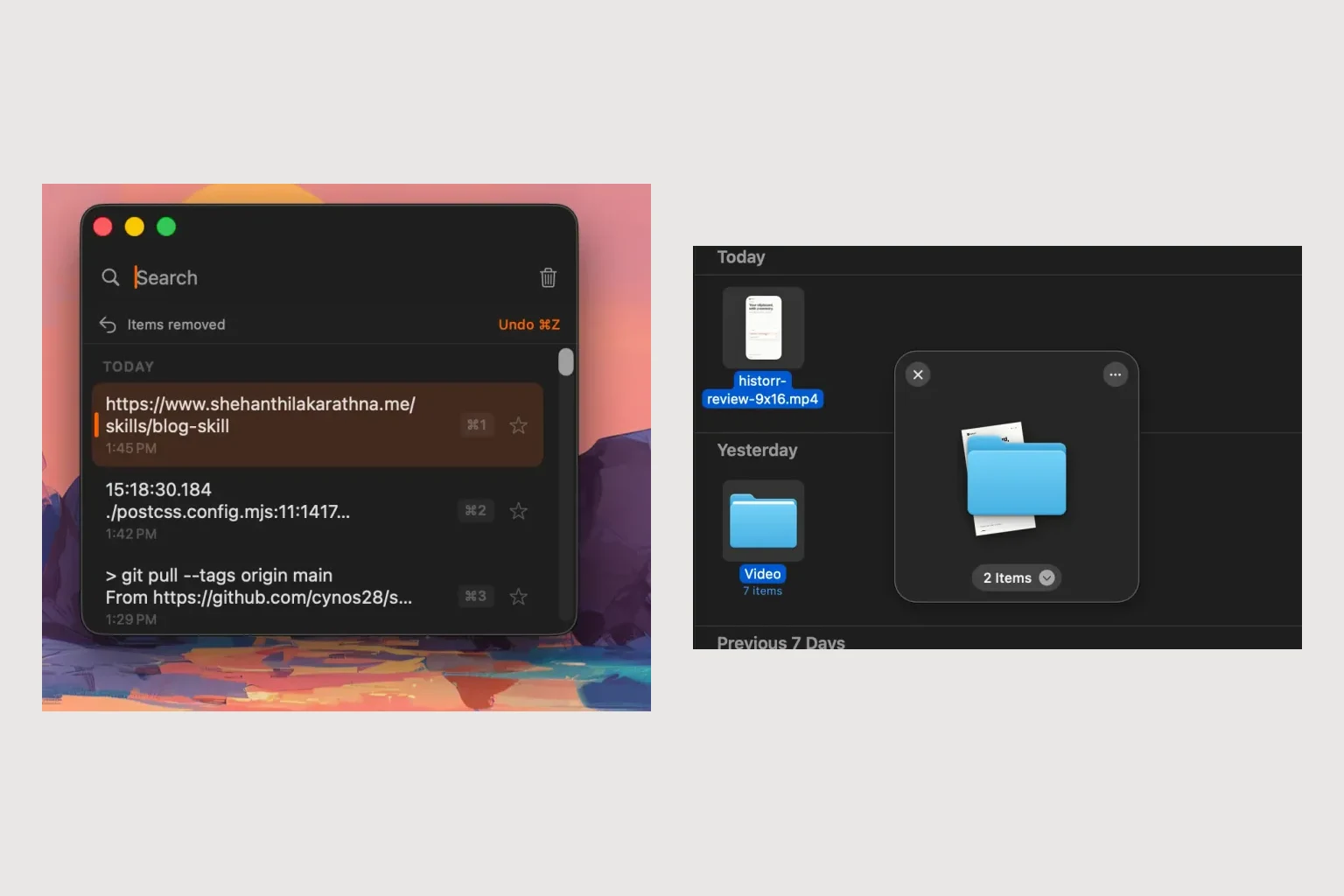
Publisher disclosure: Historr is made by KainoLab. This guide uses official product documentation and hypothetical workflow examples, not independent benchmark results. Product details checked on 23 October 2026. The cover pairs two real screenshots; it is not a single app window.
Give each part of the task a home
A delivery can involve a sentence from an email, a URL from a browser and a PDF from Finder. Trying to hold all three in memory makes it easy to copy over useful text or attach the wrong file. Historr provides different places for those different jobs.
| What you need to do | Historr feature | Your next action |
|---|---|---|
| Find something copied earlier | Clipboard history | Search and inspect the matching entry |
| Paste several selected entries in order | Paste Stack | Focus each destination before pasting |
| Gather files for a handoff | Drag Shelf | Review the collection before dragging out |
Historr’s product guide describes history and search. Its Paste Stack instructions explain the separate queue. Combining these features means one app can support the whole preparation task. It does not mean the app understands which sentence belongs with which file.
Try a mixed handoff
For this hypothetical exercise, use a sample project summary, a public reference URL and two harmless files.
- Copy the summary and URL. Open history with Option-H and locate both entries.
- Add the entries to Paste Stack in the order needed for your draft.
- Open a shelf with Option-Shift-D. Drag the two files into it from Finder.
- Focus the message body and use Option-Command-V for the next queued entry. Place the cursor before every paste.
- Review the shelf and drag the files into the attachment area. Check that the receiving app accepted both.

Real Historr screenshot supplied on 8 October 2026. It illustrates the interface; workflow examples in this article are hypothetical.
Can clipboard content go into a shelf?
Yes. The Drag Shelf guide documents Paste from Clipboard in the shelf menu. This adds the current clipboard content. It does not import the entire history automatically. Choose a specific history entry first if you need an older item.
Keep normal message text in the message body when that is what the recipient expects. A text item dragged as a file can behave differently from pasted text, depending on the destination.
Save the result somewhere permanent
Shelves do not survive quitting Historr. Keep the completed message in drafts and important files in a normal folder. See how shelf copies and originals work before using it for an important delivery.
If you are comparing apps, the existing free Dropover alternative guide covers the broader choice. Start with Historr when both retrieving text and gathering files are recurring parts of your day.