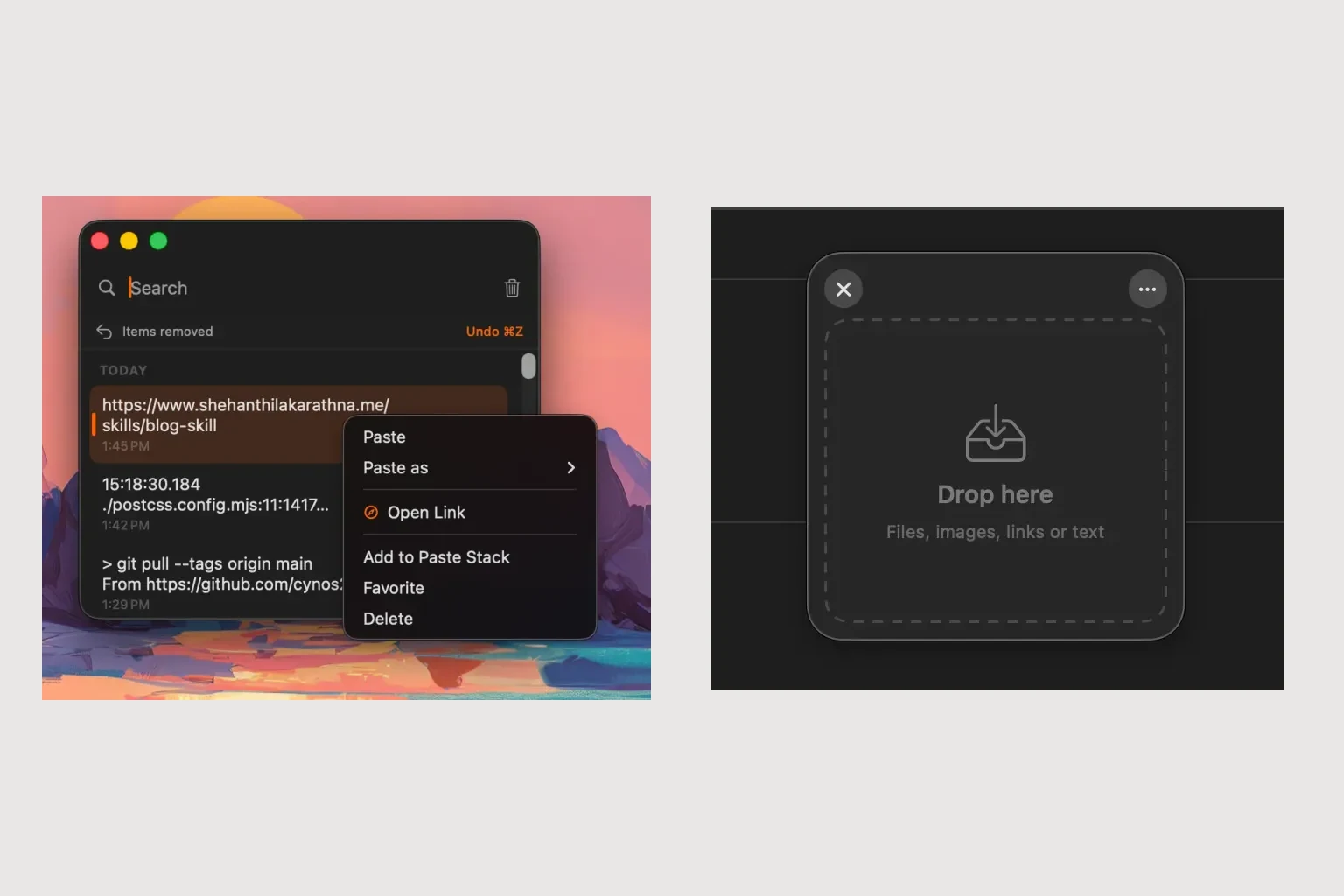
Build a Bug Report with Copied Steps and Screenshot Files
Quick answer: Use Historr clipboard history or Paste Stack for a bug report’s text, and its drag shelf for screenshot files. Keep expected and actual results separate, label screenshots by step, and check the completed report in your issue tracker.
- Author
- KainoLab Team
- Written
- Oct 23, 2026
- Product
- Historr
Publisher disclosure: Historr is made by KainoLab. This guide uses official product documentation and hypothetical workflow examples, not independent benchmark results. Product details checked on 23 October 2026. The cover pairs two real screenshots; it is not a single app window.
Build a report someone can follow
A useful bug report explains the starting state, the steps, the expected result and what happened instead. Screenshots support that explanation. They rarely replace it.
For a hypothetical example, imagine an export button that produces an empty file. Prepare four short text blocks: application version, reproduction steps, expected output and actual output. Name the supporting files clearly, such as 01-export-settings.png and 02-empty-result.png. These are example names, not files created by Historr.
Queue the text in the report’s order
Copy the blocks, open Historr history with Option-H and inspect them. Add the chosen entries to Paste Stack in the order your issue template expects. The Paste Stack guide documents Option-Command-V for pasting the next entry.
Click the correct field before each paste. Historr does not map the queue to an issue tracker’s fields for you. If the tracker has one large editor, use explicit headings so the pasted blocks stay readable.
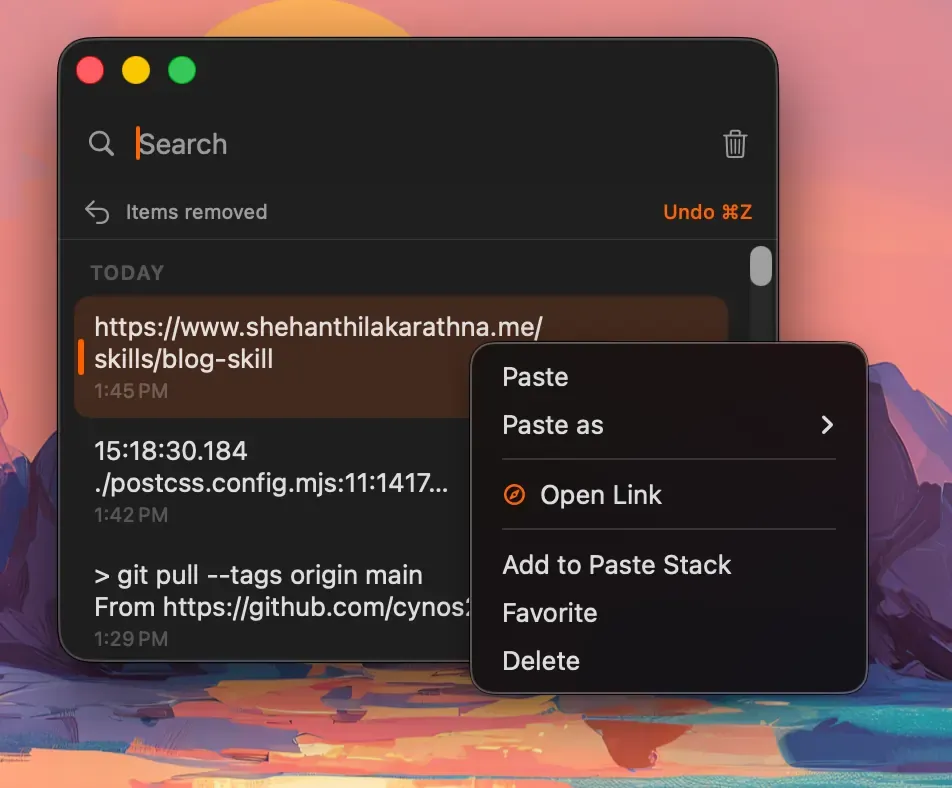
Real Historr screenshot supplied on 8 October 2026. It illustrates the interface; workflow examples in this article are hypothetical.
Gather screenshots without losing their meaning
Open a shelf with Option-Shift-D and collect the saved screenshots. Expand the shelf and preview the images before attaching them. Historr’s shelf documentation describes Quick Look and individual item review.
Use the report text to connect each image to a step: “After step 3, the export result is empty; see image 02.” Do not rely on upload order, which the receiving application may change.
Review screenshots for unrelated tabs, personal messages or credentials. Crop or redact in a suitable image editor before adding the final image to the report. The shelf does not establish that an image is safe to share.
Validate the complete issue
Read the report from the perspective of someone who has never seen the failure. Can they reproduce it with the stated inputs? Does the attachment show the same environment and version as the text? Remove duplicate screenshots that do not add evidence.
Keep the report and attachments in the issue tracker or a normal folder. A temporary shelf is not the bug record, and Historr does not automatically submit the issue.
The clipboard-and-shelf guide explains how the two views fit together. Try Historr on a sample report to see whether fewer trips between history and Finder help your own process.