Prepare Course Materials with a Clipboard and File Shelf
Quick answer: Historr can help prepare a lesson by retrieving copied session text and gathering handout files on a shelf. Check the audience and version of every item, then save or upload the final pack somewhere permanent before class.
- Author
- KainoLab Team
- Written
- Oct 23, 2026
- Product
- Historr
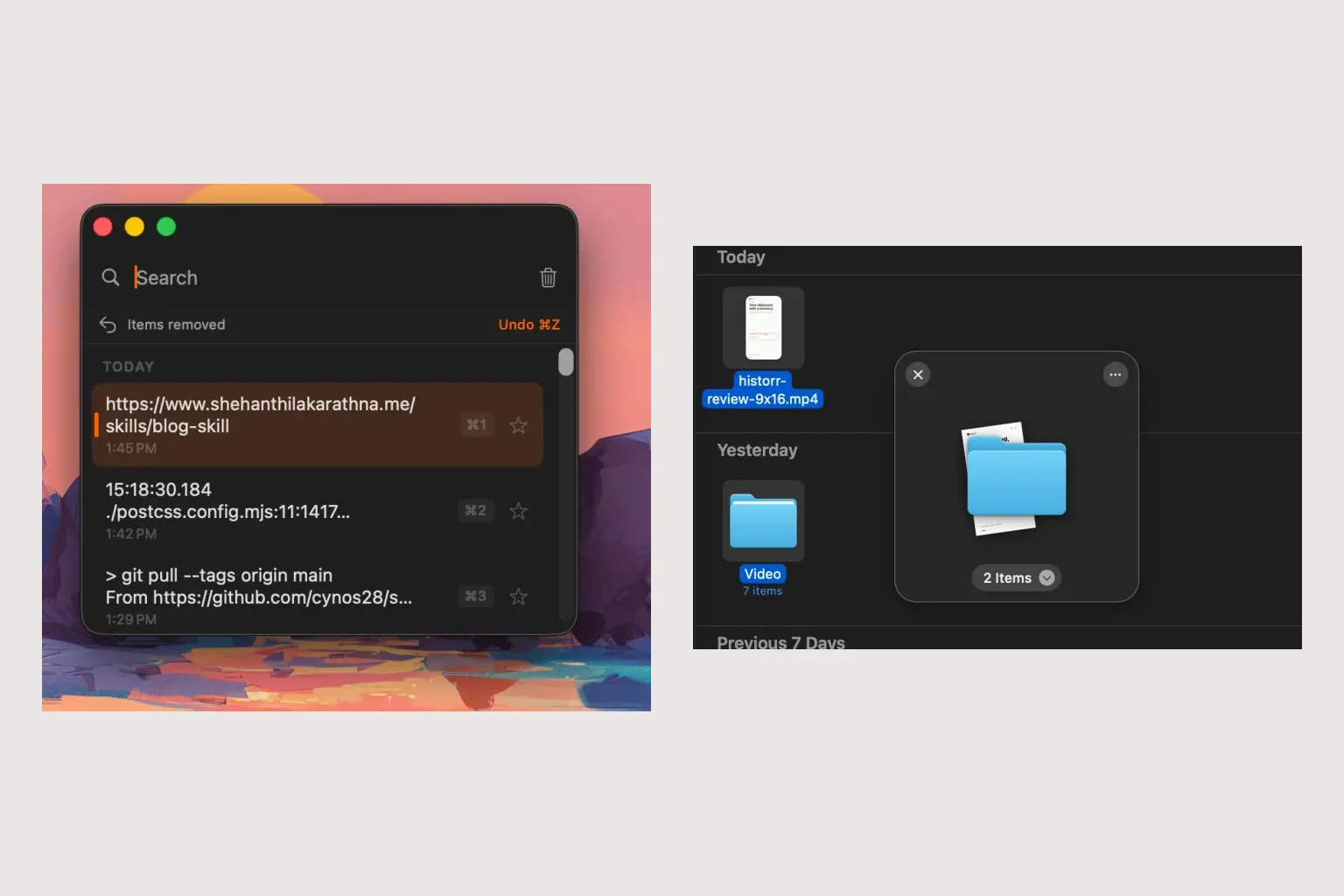
Publisher disclosure: Historr is made by KainoLab. This guide uses official product documentation and hypothetical workflow examples, not independent benchmark results. Product details checked on 23 October 2026. The cover pairs two real screenshots; it is not a single app window.
Define what learners should receive
A session pack may contain a worksheet, slides and a reading link. An instructor’s working folder may also contain answer keys and private notes. Decide what belongs in the learner pack before opening the shelf.
In this hypothetical example, a trainer is preparing a spreadsheet workshop. The pack needs a practice workbook, a PDF exercise sheet and a public reference link. The answer workbook stays in the instructor folder.
Gather the session wording
Copy the session title, instructions and reading link from your approved notes. Historr’s history lets you find copied items again with Option-H. Read each item before pasting it into the course announcement.
For a sequence of short blocks, Paste Stack can help paste selected entries one at a time. Keep your cursor in the intended place. The app does not know which classroom, course or audience the text belongs to.
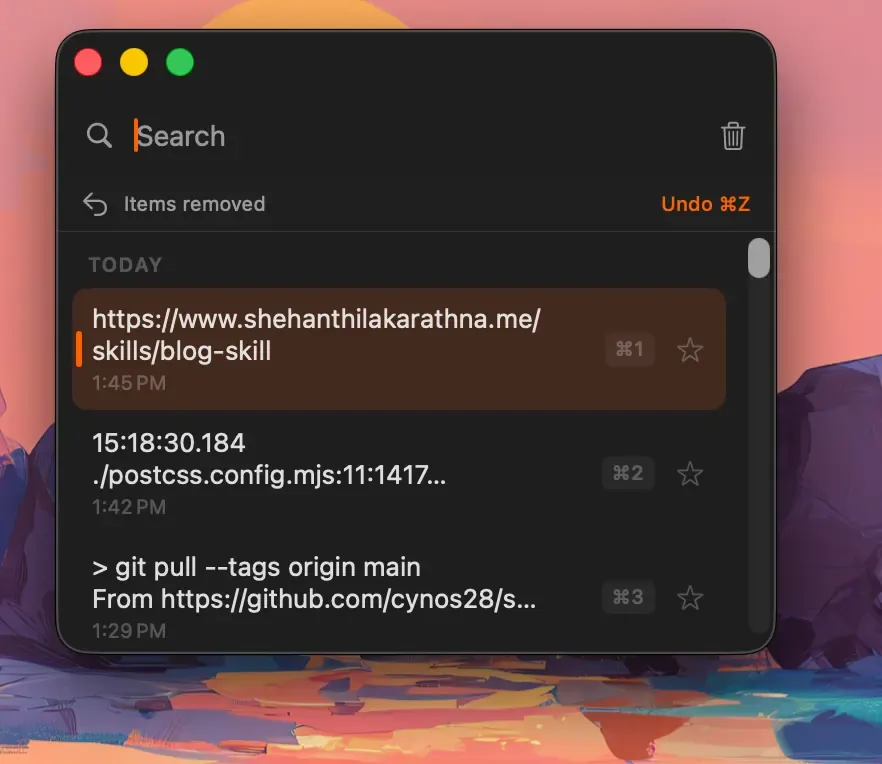
Real Historr screenshot supplied on 8 October 2026. It illustrates the interface; workflow examples in this article are hypothetical.
Build a small learner pack
Open a shelf with Option-Shift-D and collect only the learner files. Expand the shelf to inspect the names, then preview the exercise sheet. Check that any workbook is the practice version and opens in the software learners will use.
The Drag Shelf guide documents Save to Folder and Compress to ZIP. A normal folder is useful for an internal handoff; a ZIP can group files when the learning platform accepts it. Neither choice removes the need to test the learner’s access.
Verify the delivery route
Upload the pack to the course platform or save it in the agreed shared location. Open the uploaded material using an appropriate learner preview, if the platform offers one. Check that the reading link does not depend on an instructor-only session.
The shelf does not distribute the course or track attendance. It also does not remain available after quitting Historr. Keep a dated pack in your course folder so you can identify exactly what a session used.
This workflow helps when preparing materials means repeatedly returning to copied instructions and several file locations. For a single handout, a direct Finder upload may be enough. See how history and shelves work together, and try Historr with one sample lesson pack.