Turn Meeting Notes into a Follow-up with the Right Attachments
Quick answer: Use Historr to retrieve selected text from meeting notes and stage the supporting files for a follow-up. Check each decision, owner and attachment version before sending. Historr does not transcribe meetings or synchronize tasks with your team.
- Author
- KainoLab Team
- Written
- Oct 23, 2026
- Product
- Historr
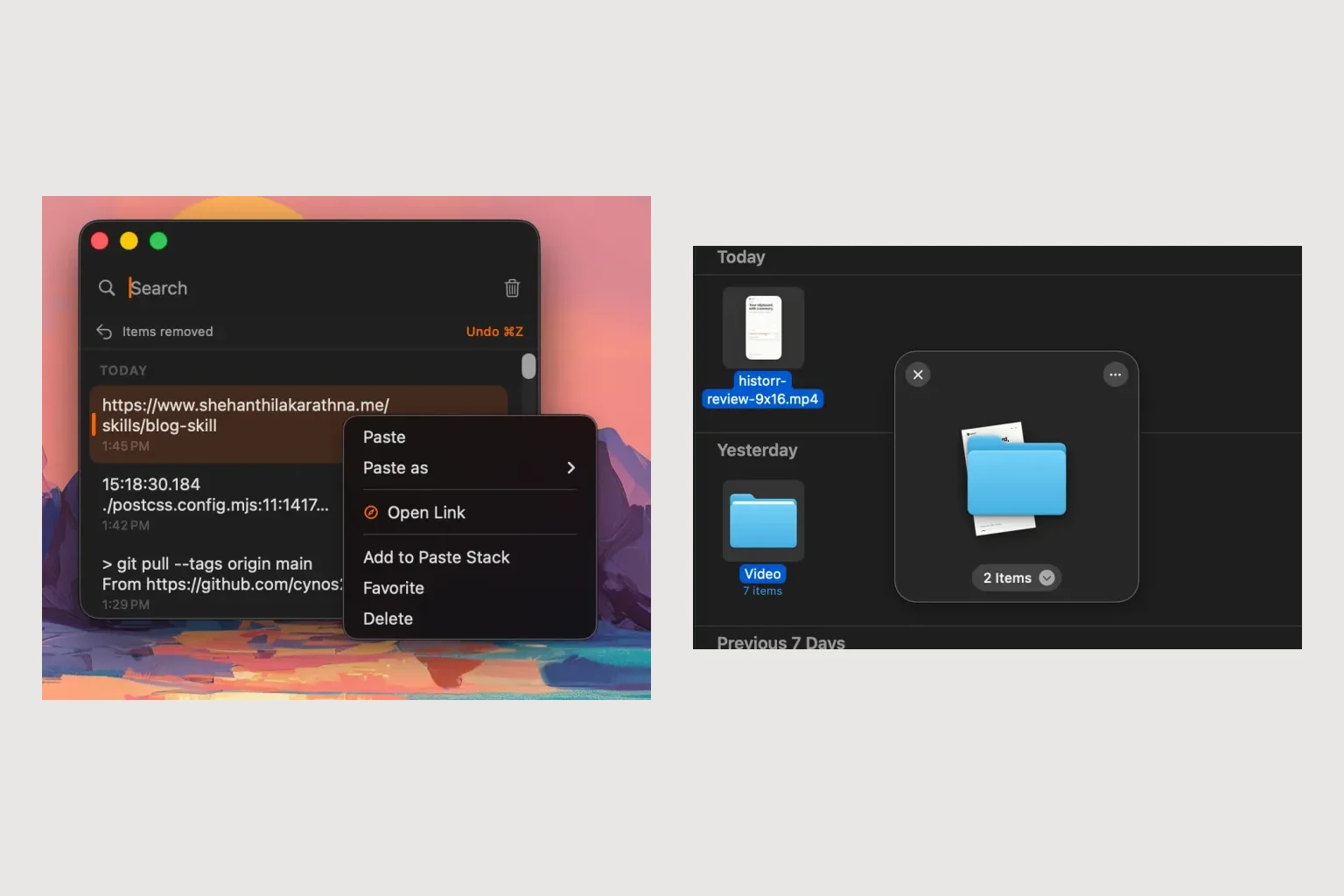
Publisher disclosure: Historr is made by KainoLab. This guide uses official product documentation and hypothetical workflow examples, not independent benchmark results. Product details checked on 23 October 2026. The cover pairs two real screenshots; it is not a single app window.
Write down the decision before collecting files
A follow-up should explain what was decided, who will act and when the next step is due. Start from the meeting’s agreed notes. If a point is unclear, resolve it before turning it into an instruction.
For a hypothetical project meeting, imagine three agreed actions and a revised proposal PDF. Write a compact action table in your draft with columns for action, owner and due date. Keep the proposal separate until you have checked its version.
Bring the selected text into the draft
Copy the relevant decisions from the notes. Open Historr clipboard history with Option-H to retrieve them while drafting. Read enough context to preserve any conditions or exceptions discussed in the meeting.
You can add selected entries to Paste Stack and paste them in order using Option-Command-V. Move the cursor yourself between table cells or paragraphs. Check the result rather than assuming the copied order matches the final message.
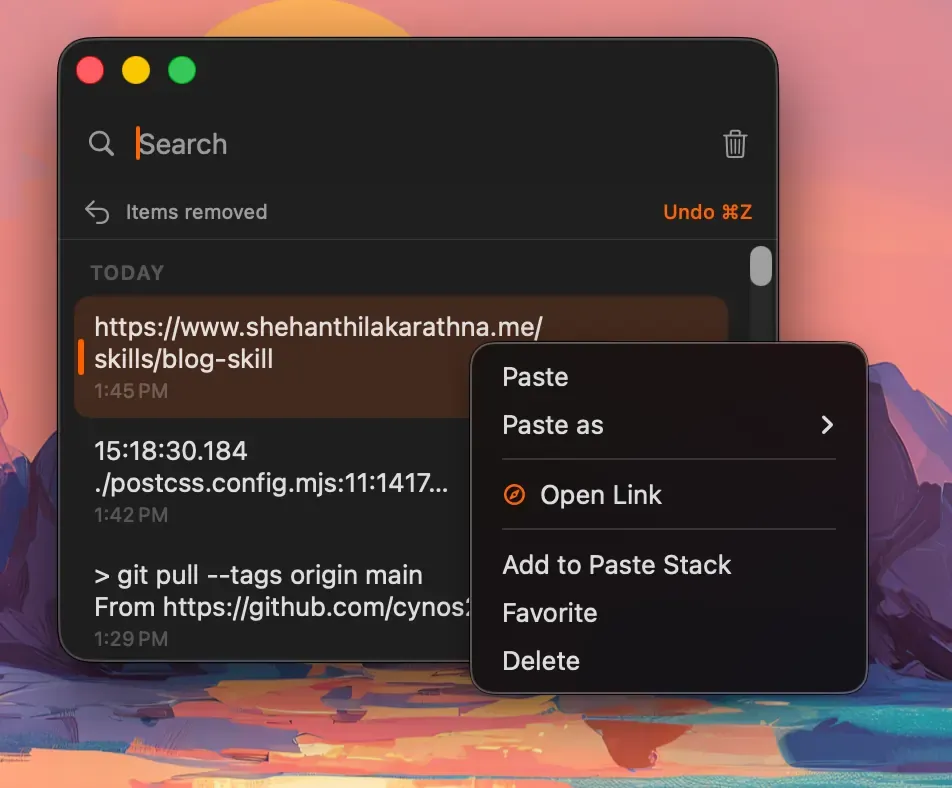
Real Historr screenshot supplied on 8 October 2026. It illustrates the interface; workflow examples in this article are hypothetical.
Match each attachment to a sentence
Open a shelf with Option-Shift-D and add the proposal or other agreed files. Use the shelf’s preview tools to inspect them. A filename alone may not prove that a document contains the latest change.
For every attachment, add a sentence explaining why it is included. “The attached proposal includes the revised delivery dates” gives the recipient something specific to verify. Remove working documents that were discussed but not approved for circulation.
Read the final message as the recipient
Check that each action has a clear owner and that the attached document matches the message. If an action belongs in a project system, record it there using that system’s normal process. Copying a task into an email does not synchronize it elsewhere.
Drag the reviewed files into the destination and confirm they appear. Save or send through your normal communication tool. Historr’s shelf is temporary and does not provide a record of who received or opened the follow-up.
The benefit of using history and shelf together is keeping text retrieval and file preparation close while you work. Try Historr on a sample follow-up and keep the official notes in their permanent location.