Prepare Product Listing Copy and Images in One Mac Workflow
Quick answer: Use Historr to retrieve approved product copy and gather matching image files before a listing upload. Keep the product identifier visible throughout the task. Historr helps prepare the materials; your store remains responsible for fields, uploads and publication.
- Author
- KainoLab Team
- Written
- Oct 23, 2026
- Product
- Historr
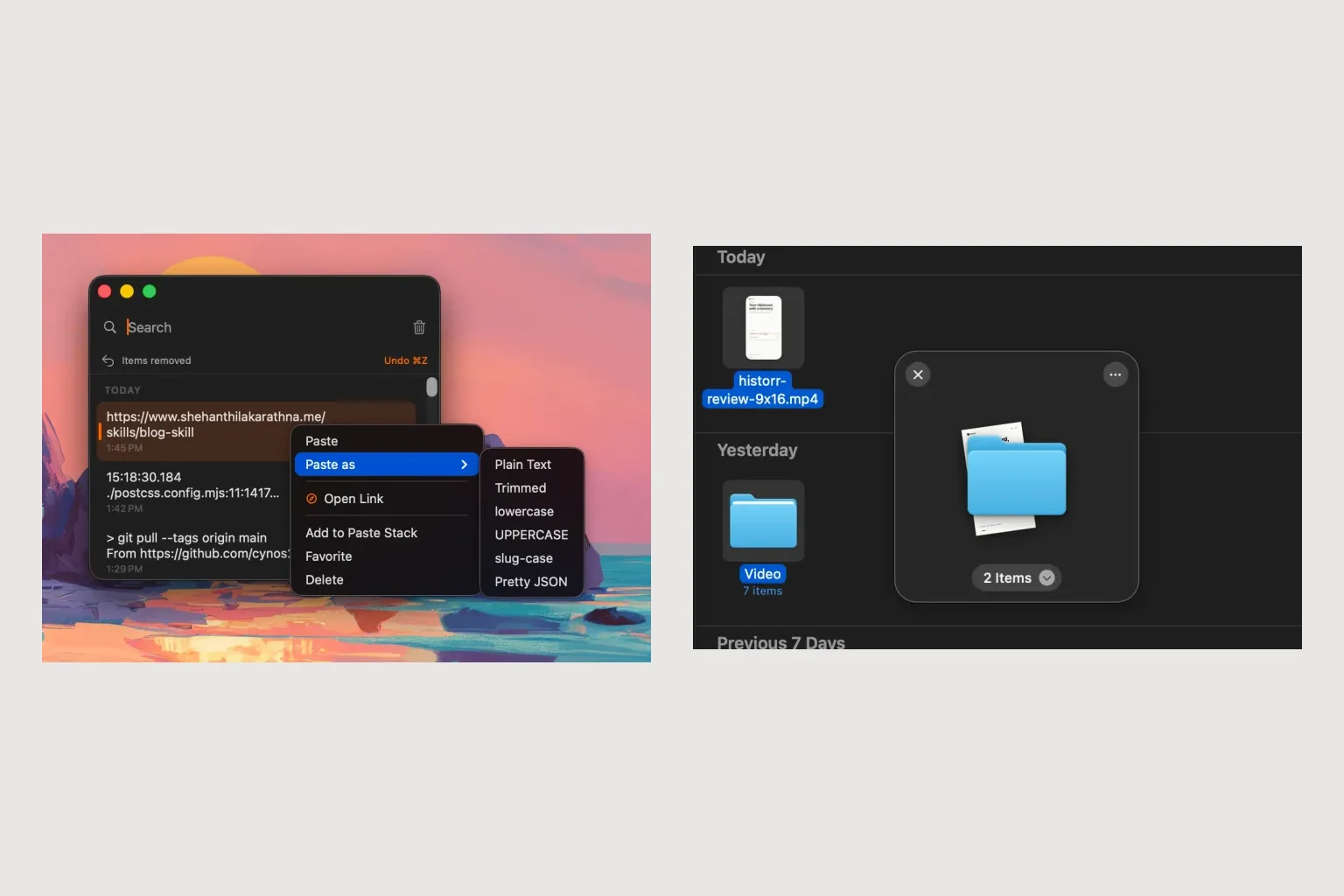
Publisher disclosure: Historr is made by KainoLab. This guide uses official product documentation and hypothetical workflow examples, not independent benchmark results. Product details checked on 23 October 2026. The cover pairs two real screenshots; it is not a single app window.
Match the copy and images to one product
A product listing can look complete while using the wrong variant’s photo. Before moving any content, identify the product and variant in your source document and filenames.
Imagine a hypothetical shop with two sizes of the same bag. Make a preparation sheet containing the product code, size, approved title, description and expected image names. Work on one variant at a time so a copied description cannot silently drift into the next listing.
Retrieve the approved text
Open Historr clipboard history with Option-H and find the copied title or description. Compare it with the approved source before using it. History helps recover text; it does not tell you whether that text is still approved.
If formatting from the source causes problems, Historr provides paste transforms, including plain text. Inspect the result in the store editor because removing formatting may also remove useful paragraph structure. Keep technical specifications and units unchanged unless the approved source requires a correction.
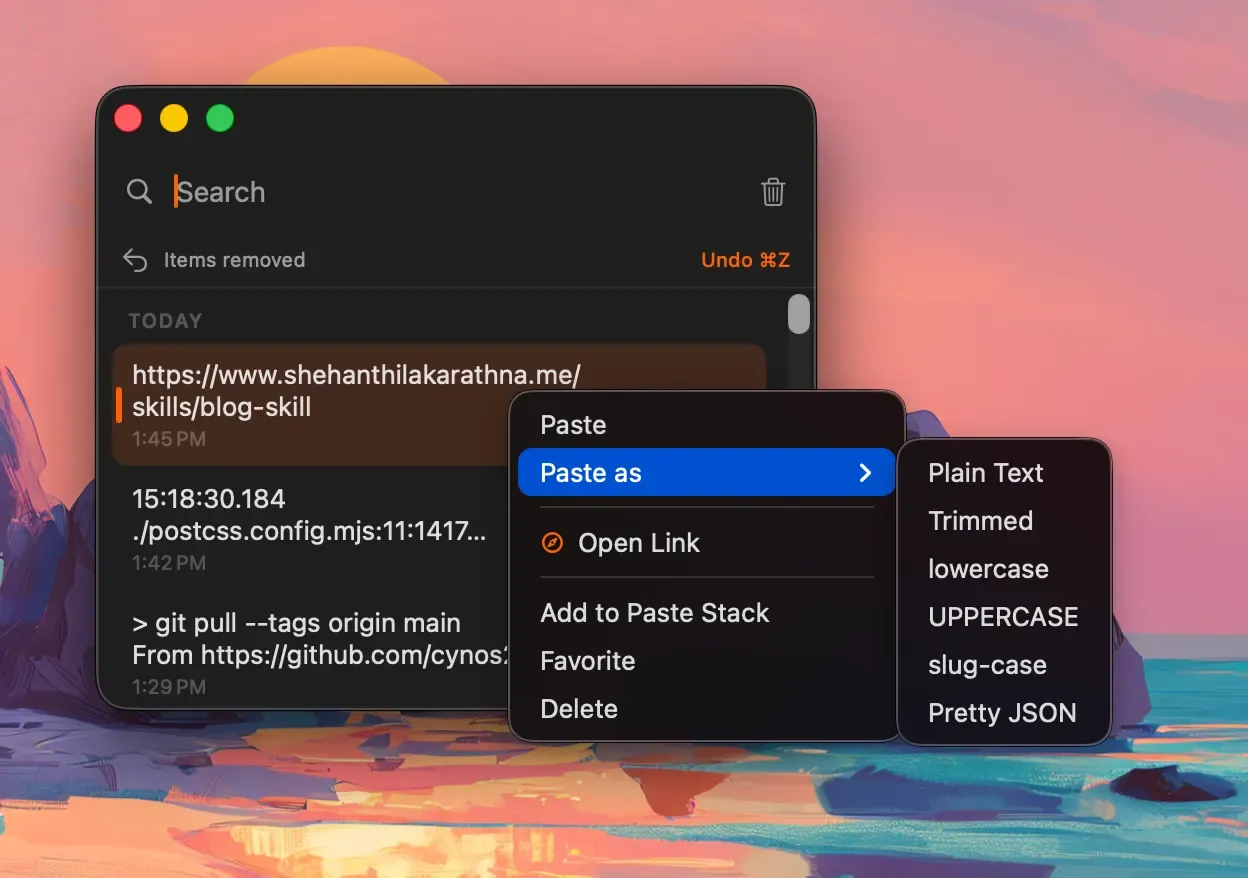
Real Historr screenshot supplied on 8 October 2026. It illustrates the interface; workflow examples in this article are hypothetical.
Review the image set on a shelf
Open a shelf with Option-Shift-D and collect the selected image files. Use Quick Look to inspect the product, colour and view shown in each image. The shelf documentation also describes resizing images into copies while leaving originals unchanged.
Use resizing only when it suits the store’s requirements. A smaller file is not automatically a better listing image. Check the destination’s dimensions and quality needs, then preview the resized copy before uploading it.
Inspect the storefront preview
Upload the selected files through the store’s supported controls. The store may reorder images or choose the first image as a thumbnail, so check the actual preview. Write useful alternative text based on what the image shows instead of reusing filenames.
Compare the rendered title, description and photos with the preparation sheet. Save the completed listing as a draft while someone reviews it if your process calls for approval. Historr does not manage stock, publish listings or provide a shared product database.
Keep the source copy and images in permanent storage. Shelves are temporary, as explained in the file-copy guide. Try Historr on one sample listing to evaluate the combined text-and-image preparation workflow.