Collect Research Notes and Reference Files with Historr
Quick answer: Historr can help gather copied research notes and local reference files in one app, but it does not manage citations. Save each excerpt with its source in a permanent research document, and use the shelf only to prepare a reviewed set of files.
- Author
- KainoLab Team
- Written
- Oct 23, 2026
- Product
- Historr
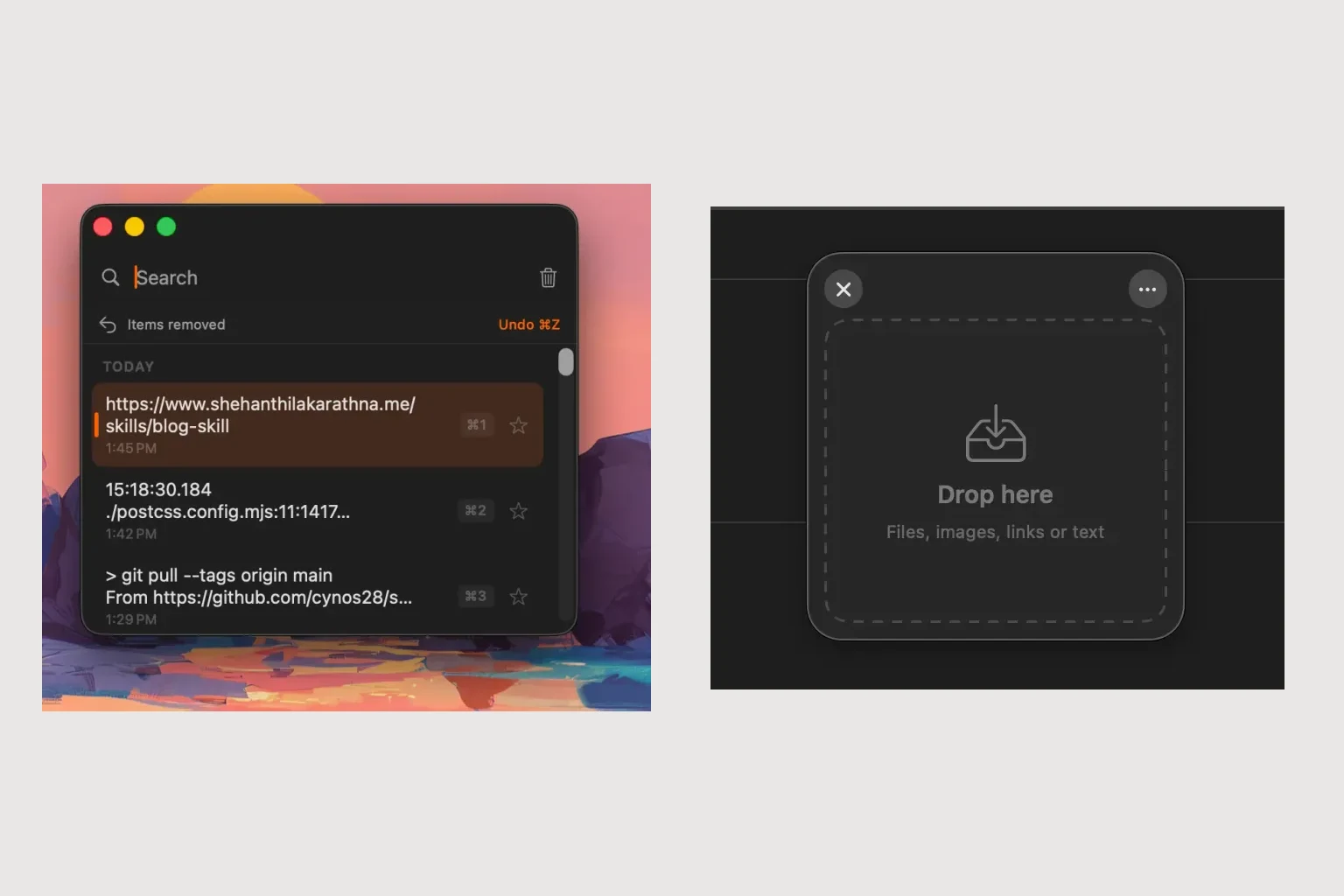
Publisher disclosure: Historr is made by KainoLab. This guide uses official product documentation and hypothetical workflow examples, not independent benchmark results. Product details checked on 23 October 2026. The cover pairs two real screenshots; it is not a single app window.
Keep the source beside the note
Research becomes difficult to reuse when a useful sentence loses its source. A clipboard history can recover copied content, but you should still record the page title, URL, access date and relevant page or section in your notes.
Use this hypothetical exercise: compare two public product manuals and prepare a short briefing. Create a research document with a separate section for each manual. That document is the durable record; Historr helps move selected material into it.
Retrieve copied material deliberately
Historr provides searchable clipboard history. Open it with Option-H to find a recently copied term or excerpt. Before pasting, return to the original source and check the surrounding context. A short copied passage may omit an important qualification.
Paste the excerpt and source details together in your document. Mark exact quotations clearly and distinguish them from your own summary. Historr does not verify accuracy, add a citation style or grant permission to reproduce material.
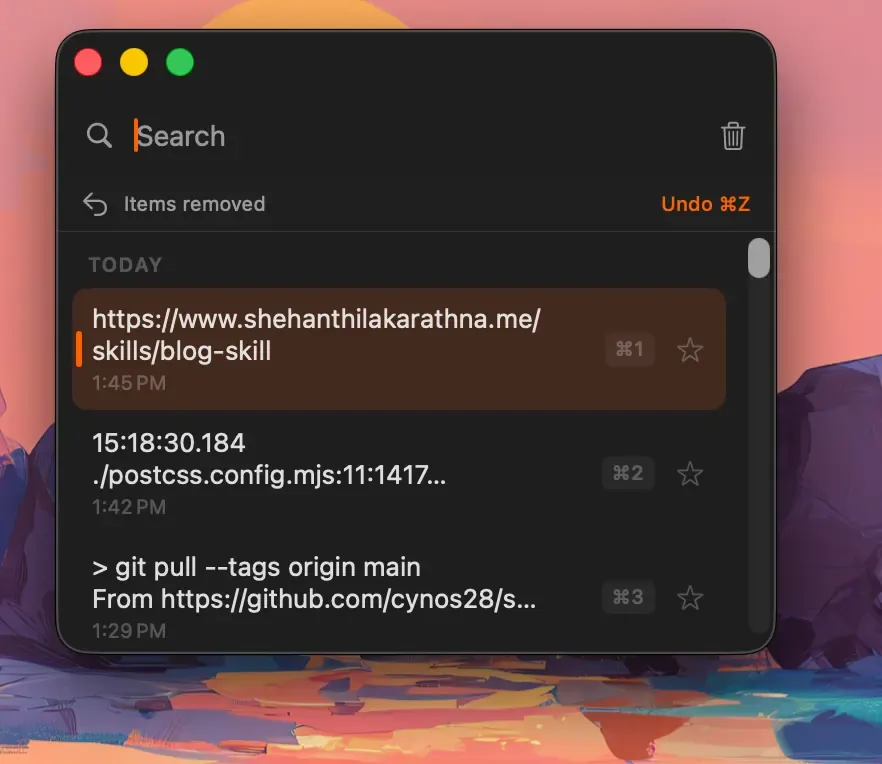
Real Historr screenshot supplied on 8 October 2026. It illustrates the interface; workflow examples in this article are hypothetical.
Collect the files for the briefing
If you have lawful local copies of the manuals, open a shelf with Option-Shift-D and gather the selected files. Use meaningful filenames that include a version or date when appropriate. Preview the files and make sure the briefing refers to those versions.
The Drag Shelf guide documents collection and Save to Folder. Save a prepared reading pack to a normal folder if it must remain available after the session. Keep the bibliography in the briefing rather than relying on filenames alone.
Separate working notes from the reading pack
A folder of PDFs and a written explanation serve different needs. The folder preserves the reading materials; the explanation tells the reader what matters and where to find it. When sharing, include only files you are allowed to redistribute. A source link may be more appropriate than a copied document.
This workflow is useful when text retrieval and file collection repeatedly interrupt your writing. It does not replace a reference manager for a large research library, and shelves do not survive quitting Historr.
For the next session, try the combined workflow with two public sources and a short summary. Historr can support the preparation while your research document remains the source of record.