
How to Choose a Clipboard Manager for Mac: A 10-Point Checklist
Quick answer: Choose a clipboard manager for Mac by checking ten things: macOS support, price model, privacy and storage, open shortcut, search speed, history size, paste options, image handling, extra tools like queues or shelves, and how the developer updates it. Test your top choice with real work for a day before committing.
- Author
- KainoLab Team
- Published
- Oct 31, 2026
- Product
- Historr
Photo: Joshua Sun on Unsplash. The cover is a stock photograph, not a Historr screenshot.
Publisher disclosure: Historr is made by KainoLab, the publisher of this guide. Product details were checked against official pages on 31 October 2026. This is not an independent test.
There are many clipboard managers for Mac, and most look similar in screenshots. Small differences show up once you use one every day. This checklist helps you compare options before you commit. For a broader overview of tools, see our guide to the best clipboard manager for Mac.
1. Does it support your macOS version?
Check the minimum macOS version on the official page. Historr lists macOS 13 Ventura or later on historr.com. Maccy’s site lists macOS Sonoma 14 or later. If your Mac is on an older system, this can decide the choice immediately.
2. What is the price model?
Options include free, one-time purchase and subscription. Think about how long you will use it. A free tool saves money, but check how it is maintained. A paid tool may offer support or features you value.
3. Where is your data stored?
Local storage means history stays on your Mac. Cloud sync may be useful across devices but adds another place for sensitive text to live. Read the privacy documentation. Historr states local storage with no account and no telemetry on its privacy page.
4. How does it treat sensitive copies?
Passwords, card numbers and one-time codes often pass through the clipboard. Useful protections include ignoring copies flagged by password managers, removing detected sensitive values after a short time, and a pause option. No tool can guarantee it detects every private string, so stay careful.
5. How fast is the open-and-paste routine?
You should be able to open the manager with a shortcut, search, and paste without touching the mouse. Time yourself. If it takes more than a couple of seconds, you will stop using it.
6. How big is the history?
Look for a setting for the number of items kept, and whether favourites are protected when older items are removed. A large history is not always better. A smaller, searchable one is easier to scan.
7. What paste options does it offer?
Paste as plain text is the most useful. Others help specific work, such as trimming spaces, changing case, slug-case or pretty-printed JSON. Historr lists plain text, trimmed, lowercase, UPPERCASE, slug-case and Pretty JSON in its documentation.
8. How does it handle images?
If you copy screenshots, check whether images appear in history, how large the thumbnails are and whether you can preview them. Some tools only handle text.
9. Do you need extras?
| Extra | Useful when |
|---|---|
| Paste queue | Filling forms with several values in order |
| Favourites | Reusing snippets and links |
| Smart actions | Opening links, composing emails or previewing colours |
| Drag shelf | Collecting files, images and text to drag out together |
Do not pay for extras you will not use. If you only need text history, a minimal tool is fine. See our minimalist clipboard manager guide.
10. How is it maintained?
Check the date of the latest update, the release notes and how updates are delivered. Historr documents a daily update check from version 0.1.5 that can be turned off. A tool without recent updates may break after a macOS release.
How should you test your shortlist?
- Pick two or three candidates using the checklist.
- Use each for a half day of normal work.
- Note how often you open it, how quickly you find items and whether anything annoys you.
- Keep the one you reach for without thinking.
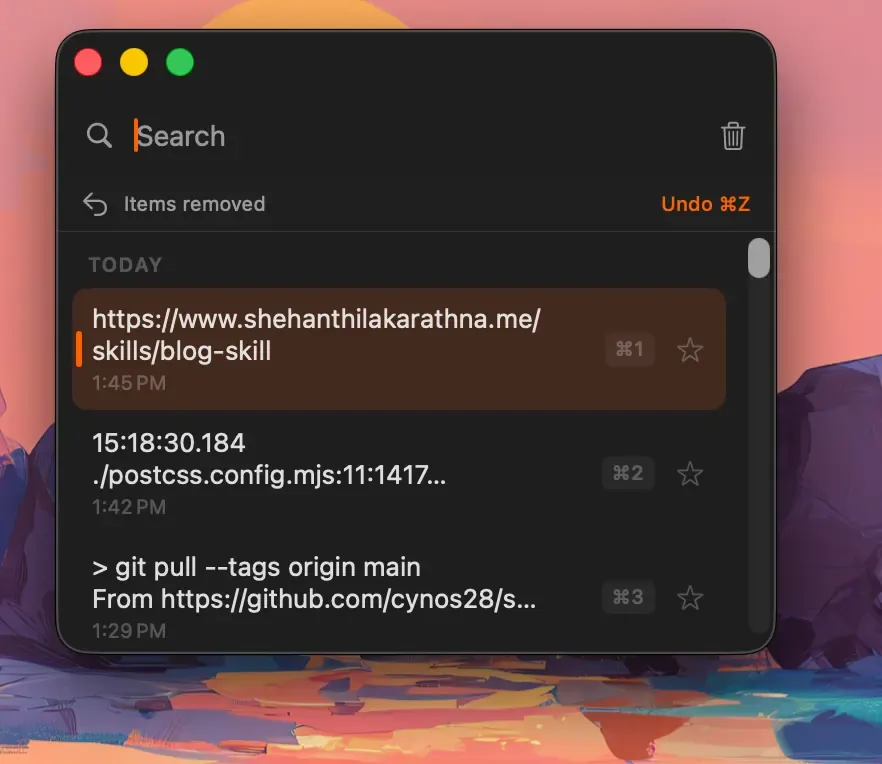
Real Historr screenshot supplied on 8 October 2026 (version 0.1.6). It illustrates the interface only.
Frequently asked questions
How many clipboard managers can I run at once? Avoid running several at the same time. They can compete for the same shortcuts and capture the same copies twice.
Should I choose the one with the most features? Not necessarily. More features can mean more clutter. Choose the one that fits your routine.
Is Apple’s built-in history enough? It may be for occasional lookups. Check Apple’s Spotlight clipboard history guide and test whether it meets your needs.
Do I need to pay for a good clipboard manager? Not necessarily. Free and open-source tools exist, and some paid tools offer extras such as sync. Decide whether those extras matter to you before paying.
What is the most common mistake when choosing one? Choosing by feature count. A tool with fewer features that you actually open every day is better than a powerful one you forget about.
Can I try a manager without changing my settings? Yes. Most apps are easy to quit and remove, and Apple’s built-in history is a no-install starting point.
Key takeaways
- Check macOS support, price, privacy and shortcuts first.
- Choose extras only if you will use them.
- Test your shortlist with real work before deciding.