How to Create a ZIP from Files in Different Mac Folders
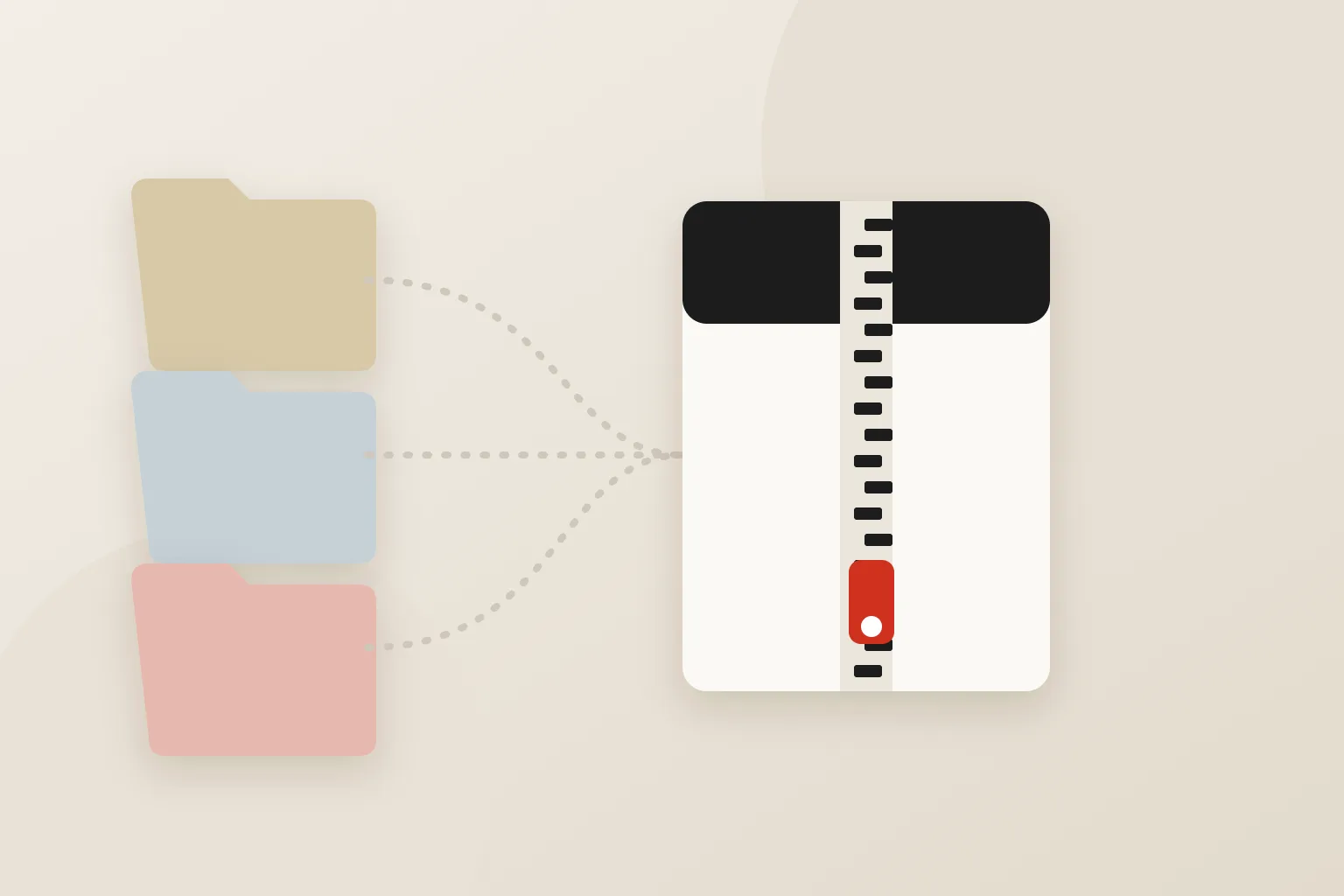
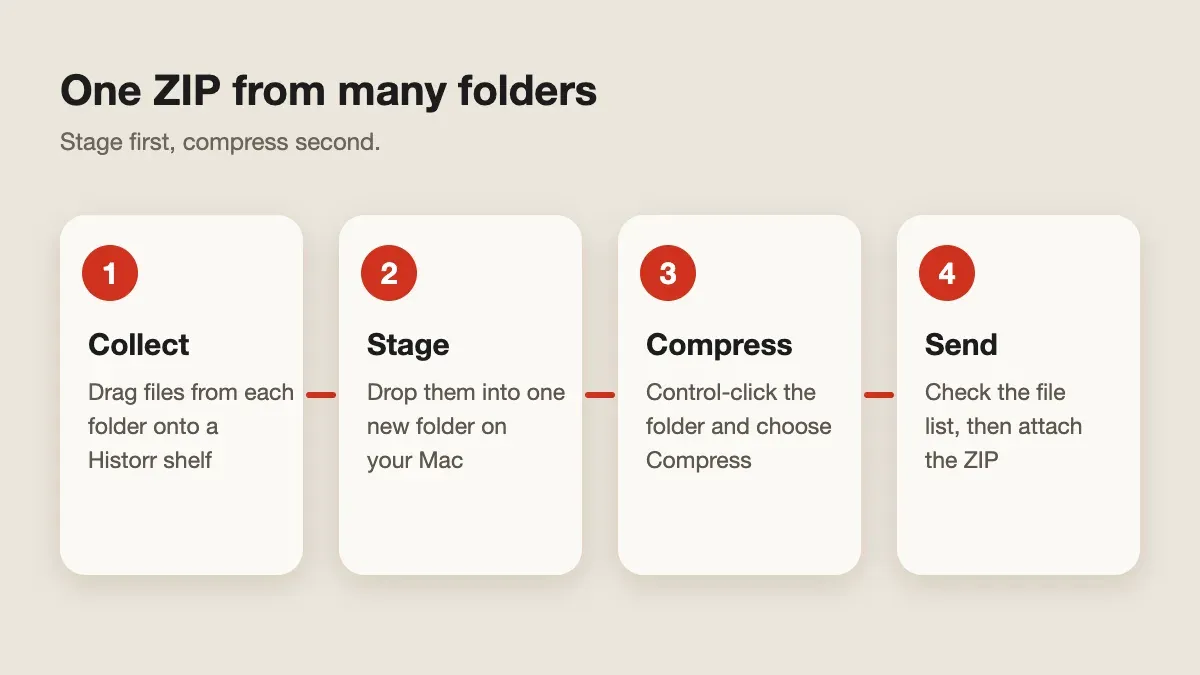
Quick answer: Finder compresses whatever you select, but you cannot select across folders in one window. Gather copies of the files into one new folder, Control-click it, and choose Compress. A Historr shelf can collect the files from different folders before you drag them into that folder.
- Author
- KainoLab Team
- Written
- Oct 13, 2026
- Product
- Historr
A ZIP file bundles files into one smaller package, which is handy for email, uploads, and handovers. The tricky part is that your files may live in several folders.
This guide uses a staging folder so you can see exactly what goes into the archive.
Can Finder zip files from different folders at once?
Not directly from one normal window. Apple’s zip guide says to Control-click a file or folder and choose Compress. A single item keeps its name with a .zip ending. Several items compress into a file called Archive.zip.
Because selection happens inside one folder, the clean approach is to put copies of everything in one place first.
How do you build the staging folder?
- Create a new folder, for example on the Desktop, with a clear name such as Client Handover.
- Copy each file into it. In Finder, hold Option while dragging to copy rather than move.
- Open the folder and check that every file is present.
How can Historr speed up the collecting?
A Historr shelf is a temporary tray for things you drag. Shake the pointer while dragging, or choose New Shelf from the menu bar (Option + Shift + D), and drop files from each folder onto the shelf. When you have everything, drag the collection into the staging folder.
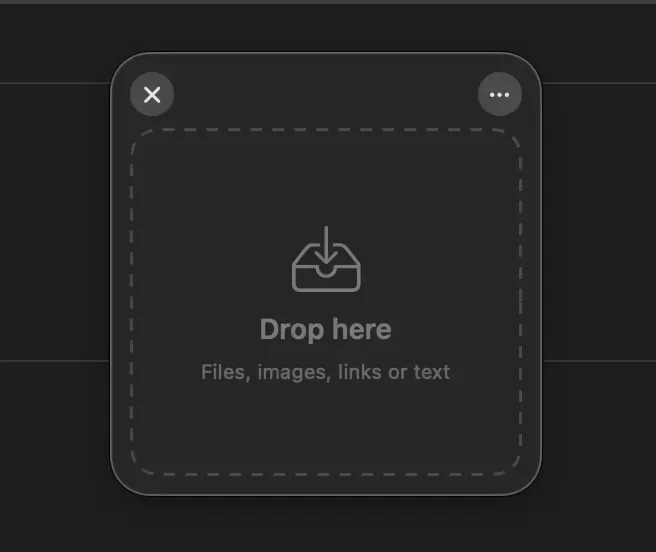
Check the result after the first drag. Confirm that the files arrived and that the originals are where you expect. Our guide to file collection with a free Dropover alternative explains what the shelf does and does not do.
How do you compress the folder?
Control-click the staging folder and choose Compress. Finder creates a ZIP next to it. Rename it if needed.
What should you check before sending?
- Open the ZIP’s source folder and confirm the file list.
- Remove files you did not mean to include.
- Check the ZIP size against your email or upload limit.
- Avoid including passwords, keys, or personal data unless the recipient needs them.
Historr’s shelf menu also lists Compress to ZIP, so you can collect files from different folders and compress them without building a staging folder first. Items drop as copies and the originals stay where they were, according to the Drag Shelf documentation. Finder’s Compress command remains the route if you want full control over the folder before archiving. Check the ZIP’s contents before sending it.
Explore Historr and test the shelf with harmless files. KainoLab makes Historr and provides this guide.