How to Install and Set Up Historr on Mac: Permissions, Settings and First Use
Quick answer: Download Historr.dmg from historr.com, drag Historr into Applications and launch it. A menu bar icon appears. Grant macOS Accessibility access when prompted so it can paste into other apps, then press Option-H to open history. Review Preferences for launch at login, history size, expiry and update checks.
- Author
- KainoLab Team
- Published
- Oct 31, 2026
- Product
- Historr
Photo: Devin Pickell on Unsplash. The cover is a stock photograph, not a Historr screenshot.
Publisher disclosure: Historr is made by KainoLab, the publisher of this guide. Product details were checked against official pages on 31 October 2026. This is not an independent test.
Setting up Historr takes a few minutes. This guide follows the steps in Historr’s installation documentation, checked on 31 October 2026, and explains what to configure afterwards.
What do you need first?
- A Mac running macOS 13 Ventura or later.
- Apple Silicon or Intel. Historr describes itself as a universal app.
- Permission to install apps on your Mac, which may need an administrator account.
If you are unsure which macOS you have, open the Apple menu and choose About This Mac.
How do you install it?
- Download the latest Historr.dmg from historr.com. Use only the official site.
- Open the DMG and drag Historr into your Applications folder.
- Launch Historr from Applications. A menu bar icon appears.
The documentation says the app is signed with a Developer ID and notarized by Apple, so macOS should open it without a security warning. If you see an unexpected warning, stop and check that you downloaded it from the official site.
How do you grant Accessibility access?
Capturing copy history needs no permission. Pasting into other apps uses macOS Accessibility access, and Historr prompts for it on first launch. If you missed the prompt:
- Open System Settings.
- Go to Privacy and Security, then Accessibility.
- Turn on Historr.
You can switch it off again at any time. Our safety guide explains why it is needed.
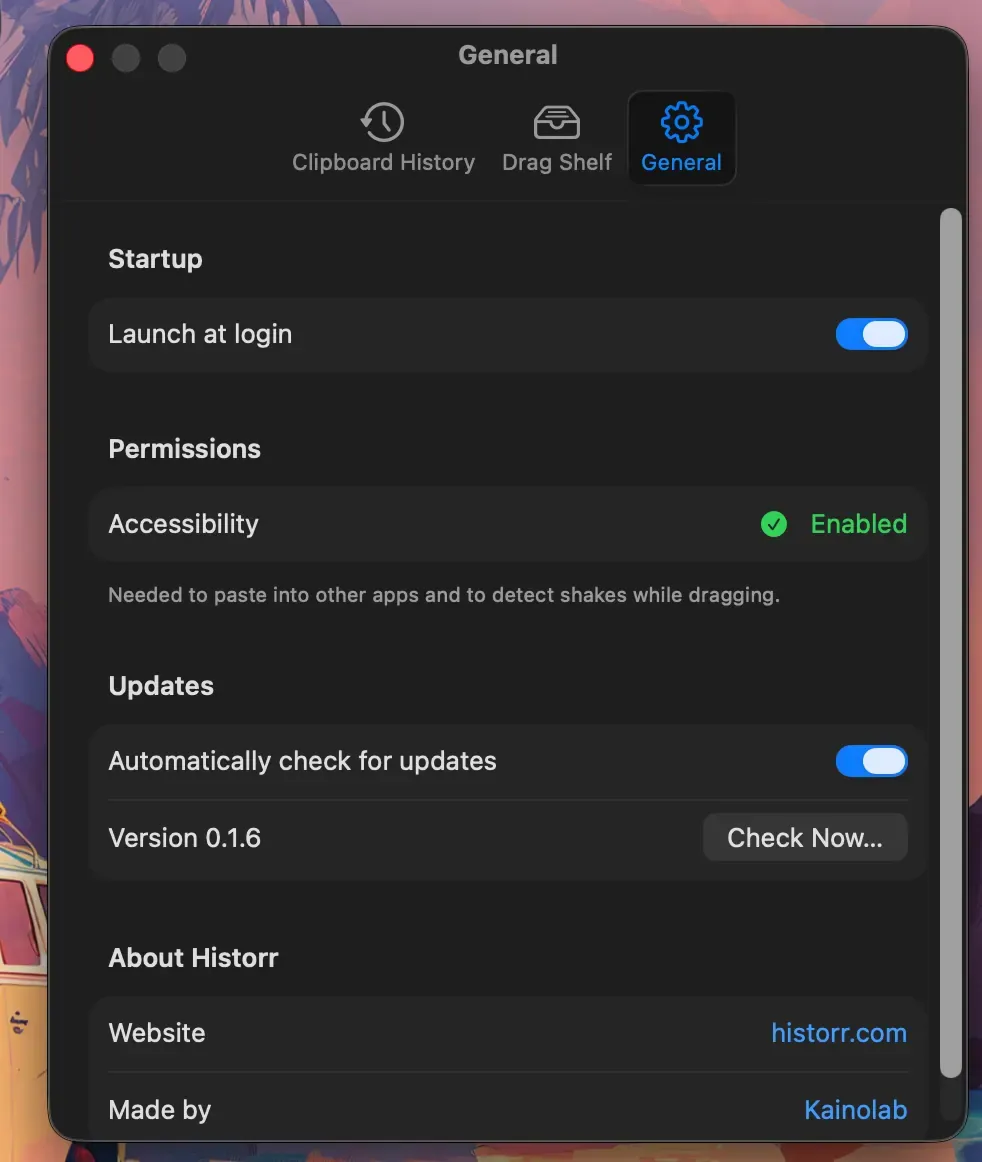
Real Historr screenshot supplied on 8 October 2026 (version 0.1.6). It illustrates the interface only.
What should you set in Preferences?
Open Preferences from the menu bar icon or with Command-comma. The documentation lists:
| Setting | Why you might change it |
|---|---|
| Launch at login | Start Historr automatically after a restart |
| Max history items | Keep the list short and easy to scan |
| Auto-expire sensitive copies | Remove detected sensitive values after a chosen time |
| Automatically check for updates | On by default; turn off if you prefer manual updates |
| Drag Shelf options | Shake to open, sensitivity and closing behaviour |
How do you try it for the first time?
- Copy three different items, such as a link, a paragraph and a screenshot.
- Press Option-H to open history.
- Type a few letters to filter, then press Return to paste.
- Press Space on an item to preview it with Quick Look.
- Try Command-1 to paste the top item quickly.
Learn the rest in our Historr keyboard shortcuts guide.
How do you keep it updated?
From version 0.1.5, Historr checks for updates once a day. When one is ready, an Update Available item appears in the menu bar menu, and Install Update installs and relaunches. You can also choose Check for Updates at any time. Updates are signed and verified before installation. If you run version 0.1.4 or earlier, the documentation says to download the latest version once from the site.
What if something does not work?
- Nothing pastes into other apps. Check the Accessibility setting.
- The history shortcut does nothing. Make sure Historr is running and check for shortcut conflicts.
- The Drag Shelf does not open. Read Drag Shelf not opening.
- An item is missing. See clipboard history missing an item.
A short verification checklist
After installing, confirm each part works. Check that the menu bar icon is visible. Copy a test phrase and find it in history with Option-H. Paste it into a note with Return to confirm Accessibility is working. Open Preferences and confirm the history size and expiry settings suit you. Restart your Mac if you enabled launch at login, and check that Historr starts on its own. If any step fails, use the troubleshooting list above before changing other settings.
Frequently asked questions
Do I need an account? No. The site describes the app as needing no account.
Does it work on an older Mac? It needs macOS 13 Ventura or later. Older systems are not listed as supported.
How do I remove it? Quit Historr and delete it from Applications. The documentation does not cover uninstalling, so check for leftover history data if that matters to you.
Can I move Historr to another Mac? Install it from the official site on the new Mac. The documentation does not describe transferring history, so keep important items elsewhere.
Why is there no Dock icon? Historr runs from the menu bar, so look for its icon there.
Key takeaways
- Download from historr.com, drag to Applications and launch.
- Grant Accessibility so Historr can paste.
- Review Preferences for login, history size, expiry and updates.